
Navigate to Reporting
How to Run Reports
Report Options
- ACA - Affordability
- ACA - Benefit Eligibility
- ACA - Full-Time Equivalent Monthly
- ACA - Validation
- ACA - Employee Over 130
- ACA - Employee Status
- ACA - Cost & Compliance
- ACA - Groups
- ACA - Dependent Status
Navigate to Reporting
Find the Employee Status page by navigating to HR Admin (module) → ACA Center → Reporting.
How to Run Reports
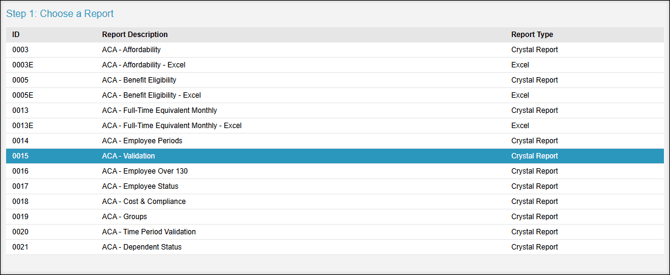
Step 1: Choose a Report
Select the desired report. Jump to the Report Options section of this page for a summary of each report.
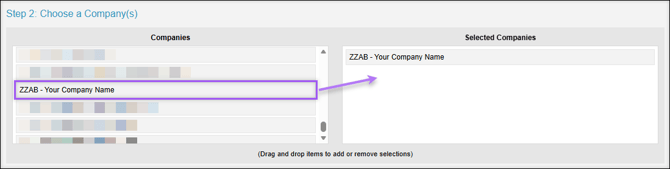
Step 2: Choose a Company
The Selected Companies will default to your current company. If you have additional companies with Checkwriters, you can run the report for multiple companies at once by dragging and dropping the desired companies from the Companies section into the Selected Companies section.
Step 3: Load Report Filters
Select Load Report Filters. This will drive the available options for running the report in the next step.

Step 4: Build a Report
Select the necessary parameters for the selected report. The parameters listed in this section will vary based on which report you selected in Step 1. After setting the parameters, select Build Report.

View Report(s)
Select Download to view the report(s) you’ve generated.

Report Options
| Report | Description | Notes |
|
ACA - Affordability This report is also available in Excel using the ACA - Affordability - Excel report. |
Helps employers determine if their lowest-cost health insurance plan meets affordability requirements. Affordability is calculated based on the employee’s wages and the affordability threshold percentage for the reporting year. |
Requirements:
|
|
ACA - Benefit Eligibility This report is also available in Excel using the ACA - Benefit Eligibility - Excel report. |
Calculates which employees qualify for benefits based on hours worked. Employees qualify if they work 30 hours per week or 130 hours per month. |
Requirements:
|
|
ACA - Full-Time Equivalent Monthly This report is also available in Excel using the ACA - Full-Time Equivalent Monthly - Excel report. |
Under the Employer Shared Responsibility Provision of the ACA, Employers with 50 or more full-time or full-time equivalent employees (FTEs) are subject to reporting requirements. The ACA - Full Time Equivalent Monthly report assists in calculating the number of full-time equivalent employees when determining if your organization is subject to ACA Reporting. An employer should assess their total Full-Time Equivalents (FTEs) from the previous calendar year when determining if they are subject to ACA Reporting requirements for the current reporting year. |
Requirements:
|
| ACA - Validation |
Assist your organization in identifying any errors/warnings that may exist in the setup of your ACA Records. To fix these potential errors, please refer to our ACA Validation Errors article. Auditing the ACA - Validation report is a critical step of the ACA Reporting process. |
This report is designed to identify common errors, but it will not identify all possible errors, such as an employee being assigned to the wrong group, status, or participation. As such, all ACA Records should be thoroughly reviewed in addition to running this report. See Maintaining your ACA Records for more information on ensuring ACA compliance. |
| ACA - Employee Over 130 | This report is similar to the ACA - Full Time Equivalent Monthly report, except it will only display employees who worked 130 hours or more for at least one month in the selected time frame. |
Requirements:
|
| ACA - Employee Status |
Provides a comprehensive listing of all ACA Employee Status records for the selected reporting year. Auditing ACA Employee Status records is a critical step of the ACA Reporting process. |
It is important to verify that employees have the correct status and, if applicable, participation for the reporting year. These records should create a timeline of the employee’s benefit eligibility. For more information, see ACA Center: Employee Status |
| ACA - Cost & Compliance | This report is a detailed printout of the Cost & Compliance records setup for the selected Calendar Year. | For more information, see ACA Center: Cost & Compliance Setup |
| ACA - Groups | This report displays a listing of each ACA Employee Group and the employees assigned to each group. | For more information, see HR Setup: Employee Group |
| ACA - Dependent Status |
This report provides a comprehensive listing of all ACA Dependent Status records for the selected reporting year. Auditing ACA Dependent Status records is a critical step in the ACA Reporting process. |
This is only applicable to organizations that sponsor a self-insured health plan. For more information, see ACA Center: Employee Dependent |