
Employee Status records and Cost and Compliance records work together to define codes on Form 1095-C. All employees who worked in the Reporting Year must have Employee Status records that cover every month of the Reporting Year.
Note: The Employee Status page is only available to companies enrolled in ACA Reporting.
Note: Only employees with a Full-Time Eligible or Variable Hour Eligible status, covering at least one full month of the reporting year, will receive a copy of Form 1095-C.
Navigate to Employee Status
Layout
Add a New Employee Status
Edit Status Records When an Employee Terminates Employment
Navigate to Employee Status
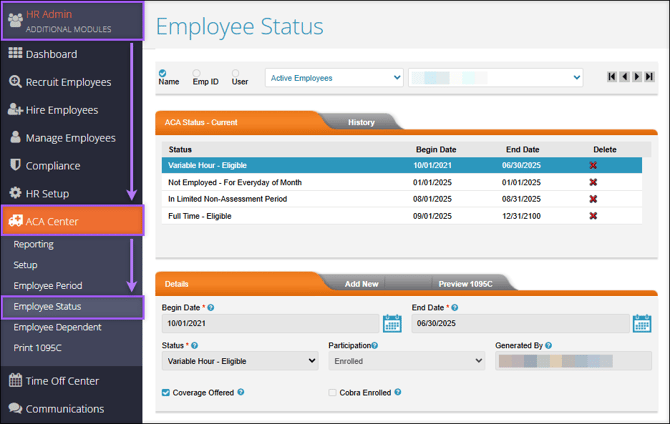
Find the Employee Status page by navigating to HR Admin (module) → ACA Center → Employee Status.
Layout
The ACA Employee Status page consists of three main sections.
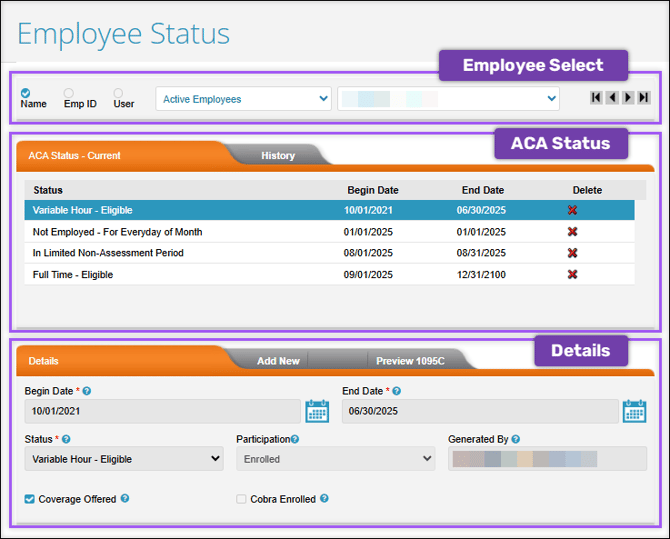
- Employee Select: Sort, filter, and select the employee whose status you want to view/edit.
- ACA Status: All existing status records will appear in this section. There are two tabs, Current and History. All records that were end-dated before the current calendar year will reside in the history tab. The record selected in this section will dictate what is shown in the Details section.
- Select Delete
 to remove an Employee Status record.
- Select Delete
- Details: The information shown in this section will be based on the selected status record from the section above. This is also where you can add new statuses and preview the 1095C.
- Select Add New to create a new ACA Employee Status
- Select Preview 1095C and select a calendar year to download a sample of the employee's 1095-C based on the current Employee Status record setup and Cost & Compliance records.
Add a New Employee Status
Create a new ACA Employee Status by selecting Add New in the Details section.
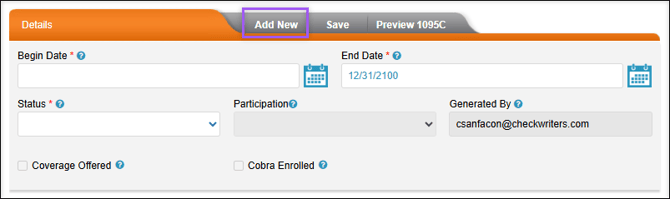
- Begin Date: The start date of the Employee Status record. This date must be the first of the month.
- End Date: The end date of the Employee Status record. Current employee status records should use the end date 12/31/2100, which allows the system to carry forward this status from year to year without requiring manual adjustments.
- Status: Use the drop-down menu to select one of the following statuses for this record:
- Full Time - Eligible: This status is for full-time employees who are eligible for the group’s health insurance plan.
- Variable Hour - Eligible: This status is for part-time employees who are eligible for the group’s health insurance plan.
- Variable Hour - Ineligible: This status is for part-time employees who are not eligible for the group’s health insurance plan.
- In Limited Non-Assessment Period: This status is used for the month the employee is hired while in a waiting period, if applicable.
- Seasonal - Ineligible: This status is for seasonal employees who are not eligible for the group’s health insurance plan.
- Exempt from Individual Mandate: This is an ineligible status and is a legacy option that is no longer supported.
- Not Employed - For Everyday of Month: This status is for when the employee has been terminated and is no longer offered health insurance coverage.
- Participation: For Eligible employee statuses, this field identifies whether the employee Enrolled in or Waived health insurance.
- Generated By: Signifies how the record was added to the system. This field is auto-generated.
- Coverage Offered: This checkbox indicates that coverage is offered. This box will be automatically selected for “Full Time - Eligible” or “Variable Hour - Eligible” statuses.
- Cobra Enrolled: This checkbox should only be used with the “Not Employed - For Everyday of Month” status, and only under two conditions:
- Health plan is Self-Insured
- "Cobra Enrolled" should be selected when the employee terminates and enrolls in Cobra or drops down to part time status and enrolls in Cobra.
- Health plan is not Self-Insured
- "Cobra Enrolled" should only be checked when an employee's status changes from Full-Time Eligible >> Variable Hour -Ineligible, the employee is still active, and enrolls in Cobra.
- Health plan is Self-Insured
Overlapping dates: When adding a new status record whose begin date overlaps with the end date of an existing status record, the system will automatically end date the existing status 1 day prior to the start of your new status.
Example:
An employee has an existing status of “Full Time - Eligible” with begin/end dates 01/01/2025 - 12/31/2100:

The employee changed status to “Variable Hour - Ineligible” effective 07/01/2025. When the new status record is added with a begin date of 07/01/2025, the system will automatically end the previous “Full Time - Eligible” status as of 06/30/2025:

Edit Status Records When an Employee Terminates Employment
Cost & Compliance setup includes employee termination rules. These rules automatically add a “Not Employed” status record when an employee is terminated. However, if Cost and Compliance records are inactive during the termination process, the system will not update status records and require a manual entry. The steps below explain how to add a “Not Employed for Everyday of Month” status for an employee whose status was not automatically updated.
- From the Details section, select Add New.
- Enter the start date of the not-employed status in the Start Date field. This date will vary based on termination rules and employee termination date. See the chart below for examples.
- Enter “12/31/2100” in the End Date field.
- Select “Not Employed for Everyday of Month” in the Status field.
- Select Save.
| Termination Treatment | Employee Termination Date | Not Employed Status Start Date |
| On Term Date |
First of the month to the second-to-last day of the month Example: Term date is between 7/1/2025 and 7/30/2025 |
First of the month Example: Not Employed status should start on 7/1/2025 |
| On Term Date |
Last day of the month Example: Term date is 7/31/2025 |
First of the next month Example: Not Employed status should start on 8/1/2025 |
| End of Month (EOM) |
Any day of the month Example: Term date is 7/1/2025 |
First of the next month Example: Not Employed status should start on 8/1/2025 |