
Note: The Employee Status page is only available to companies enrolled in ACA Reporting.
Important: This section should only be completed if your company offers a self-insured health plan.
An employer that offers health coverage through a self-insured health plan must report information about each individual enrolled, including any spouse or dependents of that employee. This information is reported on Part III of the 1095-C.

Navigate to Employee Dependent
Layout
Add Covered Dependents to an Employee
Edit Covered Dependents
Review a Full List of Covered Dependents for the Reporting Year
Navigate to Employee Dependent
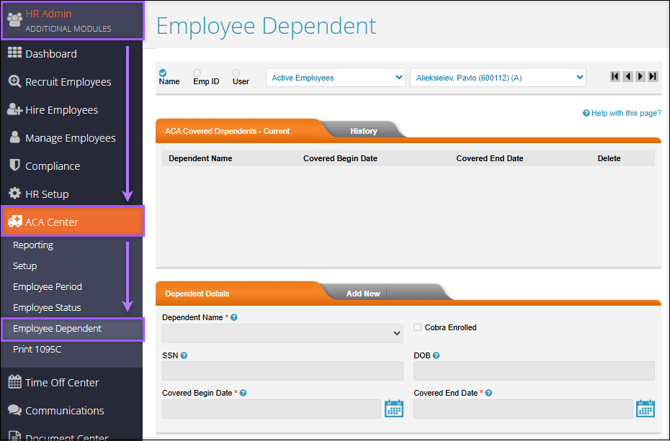
Find the Employee Status page by navigating to HR Admin (module) → ACA Center → Employee Dependent.
Layout
The ACA Employee Dependent page consists of three main sections.
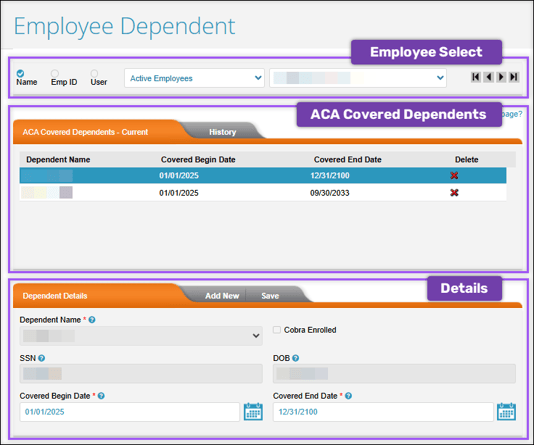
- Employee Select: Sort, filter, and select the employee whose dependents you want to view/edit.
- ACA Covered Dependent: All existing dependents and their coverage dates will appear in this section. There are two tabs, Current and History. All records that have an end date prior to the current calendar year will reside in the history tab.
- Select Delete
 to remove an Employee Dependent record. This should only be done if a dependent has been accidentally added.
- Select Delete
- Dependent Details: the information shown in this section will be based on the selected dependent record from the section above.
- Select Add New to add a new covered dependent.
Add Covered Dependents to an Employee
To add a new covered dependent to an employee, verify that the appropriate employee is selected using the Employee Select. Then, select Add New in the Dependent Details section.
Note: Before assigning covered dependents in the ACA Center, you must first add the dependents to Checkwriters in HR Admin → Manage Employees → Dependents.
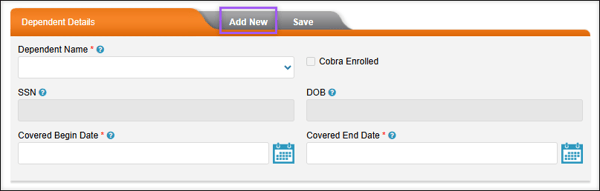
- Dependent Name: Select the appropriate dependent from the dropdown menu. If the dependent is not listed in the dropdown menu, you may need to add the dependent in HR Admin → Manage Employees → Dependents.
- SSN: The dependent’s Social Security Number. You will not be able to edit this field as the information is linked to the HR Admin → Manage Employees → Dependents page.
- DOB: The dependent’s date of birth. You will not be able to edit this field as the information is linked to the HR Admin → Manage Employees → Dependents page.
- Covered Begin Date: Enter the date that coverage should start for this dependent. This date must be the 1st of the month in which they have coverage for every day of the month.
- Covered End Date: Enter the date that coverage should end for this dependent. This date will reflect when the new status record ends. End dates must fall on the last day of the month. For dependents currently enrolled in coverage, records use the end date 12/31/2100, which allows the system to carry forward this status from year to year without requiring manual adjustments.
Select Save.
Note: Dependent coverage dates must not exceed the employee's coverage end date.
Edit Covered Dependents
If a dependent is no longer eligible or is no longer enrolled in health insurance, manual adjustments are required. To edit covered dependents:
- Select the employee whose dependent you wish to edit, using the Employee Select.
- Select the appropriate dependent from the ACA Covered Dependents section.
- Edit the Covered Begin and/or Covered End Date as needed.
- Select Save.

Review a Full List of Covered Dependents for the Reporting Year
The ACA - Dependent Status report provides a comprehensive listing of all ACA Dependent Status records for the selected reporting year.
This report can be found in the HR Admin Module → ACA Center → Reporting.
More Info: Learn more about ACA Center: Reporting.