
Navigate to Employee Group
Add Employee Group
Assign Employees to Groups
Companies whose lowest-cost single health plan is the same for all employees need only one Employee Group, defined as the “ACA All Employees” group by default.
Companies whose lowest-cost single health plan differs due to termination rules, waiting period, or contribution amounts need multiple Employee Groups. Cost and Compliance records will need to be set up for each employee group.
Multi-Employee Group examples:
-
My organization offers two different health insurance plans (HMO & PPO), but my out-of-state employees are only eligible for the PPO plan, which costs employees more than the HMO.
-
In this situation, two groups would be set up: one for in-state employees and another for out-of-state employees.
-
-
My organization has union and non-union employees. Union employees are offered insurance through the union, but non-union employees are offered insurance through the company.
-
In this situation, two groups would be set up: one for union and another for non-union employees.
-
If you are unsure if setting up additional employee groups applies to your organization, contact ACATeam@checkwriters.com
Note: Employees can only be assigned to one employee group.
Navigate to Employee Group
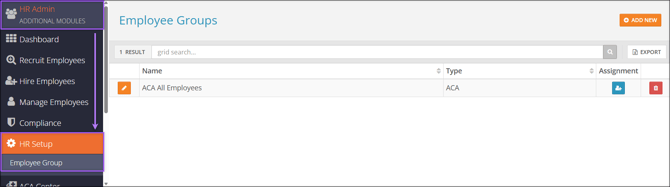
Find the Employee Group page by navigating to HR Admin (module) → HR Setup → Employee Group.
Add Employee Groups
Select Add New to create a new Employee Group.
- Enter the group Name
- Set the Type to “ACA”.
- Select Save.

Assign Employees to Groups
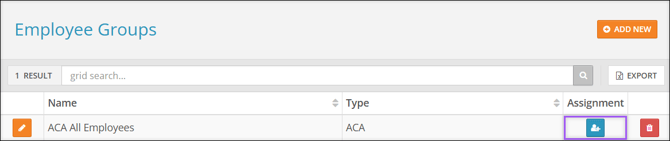
- Select the Assignment icon on the group you want to assign employees to.
- Use the Assign checkboxes to select employees who should be assigned to the selected Employee Group.
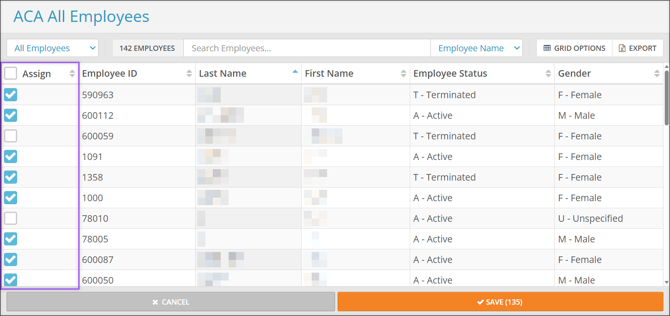
- Select Save.
Note: To assign an employee to a different Employee Group than the one they are currently assigned, you must first unassign them from their current group. To do this,
- Select the Assignment icon on their current Employee Group.
- Uncheck the Assign checkbox for the appropriate employee.
- Select Save.
- Assign the employee to their new Employee Group.