
The records defined here should correlate only to your lowest cost single health plan offered. If employee contribution amounts or plan details vary for different groups of employees, separate Cost & Compliance records will need to be set up for each employee group.
Note: The Setup page is only available to companies enrolled in ACA Reporting.
Navigate to Cost & Compliance Setup
ACA Cost & Compliance
Add New Cost and Compliance Record
- Set Cost Details
- Set Company Eligibility Certification
- Assign Attributes to Employee Group
Navigate to Cost & Compliance Setup
Find the Cost & Compliance setup page by navigating to HR Admin (module) → ACA Center → Setup → Cost & Compliance (tab).
Best Practice: Cost and Compliance records are a critical part of the ACA setup process. We highly recommend you consult your ACA Legal Counsel or Insurance Broker before setting these records.
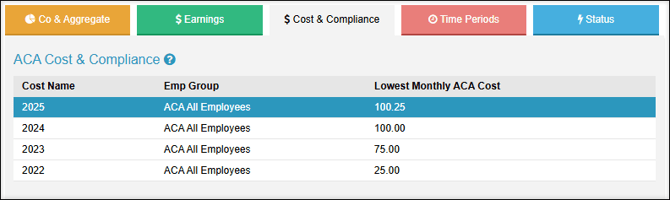
ACA Cost & Compliance
The ACA Cost & Compliance section of the Cost & Compliance tab displays a list of previous records set up for your employees.
When one of these records is selected, the rest of the page will display the details of that record.
Add New Cost and Compliance Record
Note: Employee Groups must be created before Cost and Compliance records can be set up. Learn more about HR Setup: Employee Group.
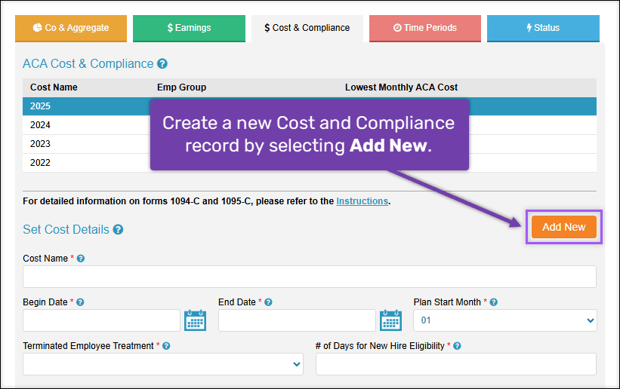
To create a new Cost and Compliance record, select Add New in the Set Cost Details section.
Set Cost Details
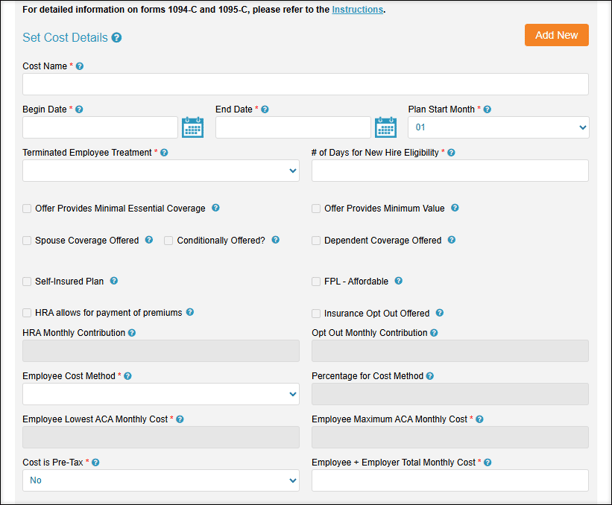
Set up the cost and type of coverage that will be offered to employees for the plan year.
-
Cost Name: Enter a name for the plan year.
Best Practice: We suggest the following name convention for your Cost and Compliance setup.
-
For single employee groups: “Carrier - Plan Year”, i.e., “BCBS - 2025”
-
For multiple employee groups: “Employee Group Name - Plan Year”, i.e., “In State - 2025” and “Out of State - 2025”
- Begin Date: The start date of the plan year. This date must be the first of the month.
- End Date: The end date of the plan year. This date must be the last day of the month.
- Plan Start Month: Calendar month that coincides with the Begin Date.
- Terminated Employee Treatment: This field determines when the status and coverage of a terminated employee end.
- EOM: End of Month. Coverage carries through the end of the termination month.
- EOM+1: End of next Month. Coverage carries through the end of the month following the termination month.
- On Term Date: Coverage ends on the date of termination.
- # of Days for New Hire Eligibility: This field indicates the number of days before a newly hired employee is offered benefits under ACA. This field correlates with your employee’s waiting period for health insurance. The values entered should be 0, 30, 60, or 90.
- Offer Provides Minimal Essential Coverage: Check this box to indicate that this coverage plan provides minimal essential coverage. Refer to your medical plan’s Summary of Benefits Coverage (SBC), insurance broker, or ACA consultant for verification.
- Offer Provides Minimum Value: Check this box to indicate that this coverage plan provides minimal value. Refer to your medical plan’s Summary of Benefits Coverage (SBC), insurance broker, or ACA consultant for verification.
- Spouse Coverage Offered: Check this box to indicate that this plan offers at least minimal essential coverage to an employee’s spouse.
- Conditionally Offered?: Check this box to indicate that the Spouse Coverage is Conditionally Offered. A conditional offer of coverage is subject to one or more reasonable, objective conditions. i.e., an offer to cover an employee’s spouse only if the spouse is not eligible for coverage under Medicare or a group health plan sponsored by another employer.
- Dependent Coverage Offered: Check this box to indicate that this plan offers at least minimal essential coverage to an employee’s dependent(s).
- Self-Insured Plan: Check this box to indicate that this is a Self-Insured plan. An employer with a self-funded health plan pays for employee health benefit claims directly, rather than purchasing a fully-insured plan from an insurance company. Refer to your insurance broker or ACA consultant for verification.
Important: Self-Insured health plans require that all covered dependents be tracked on Form 1095-C with additional setup. Learn more about ACA Center: Employee Dependent.
- FPL - Affordable: Check this box to indicate that this health plan is affordable for employees earning at or below the federal poverty level. FPL affordability thresholds vary by calendar year.
- HRA allows for payment of premiums: Check this box if your Health Reimbursement Account (HRA) can be used to reduce the employee’s contribution towards payment of their health insurance premium.
- HRA Monthly Contribution: If the HRA allows for payment of premiums checkbox is checked, enter the monthly employer contribution to the HRA.
- Insurance Opt Out Offered: Check this box if your plan offers insurance opt-out funds. These are funds offered by the employer to employees who decline health insurance coverage under an eligible, employer-sponsored plan.
- Opt Out Monthly Contribution: If the Insurance Opt Out Offered checkbox is checked, enter the monthly employer opt-out contribution.
- Employee Cost Method: Select an employee cost method from the dropdown menu. These options will affect the lowest cost offered to the employee and will be reflected on line 15 of Form 1095-C. Certain options in this dropdown menu may require you to fill out a related field. These additional fields are noted below.
- Age Banded: Employee contribution amounts vary based on age. Requires additional setup by contacting ACATeam@checkwriters.com.
- FITW Wages: Employee contributions are calculated based on the employee’s federal taxable wages. This option requires you to fill out the following two fields.
-
Percentage for Cost Method: The percentage of the employee’s federal taxable wages used to calculate the employee cost. This percentage must be for the lowest cost single plan available.
-
Employee Maximum ACA Monthly Cost: The maximum monthly amount that a single employee can contribute to the health insurance plan.
-
- Flat Amount: Employee contributions are a flat amount. This option requires you to fill out the following field:
-
Employee Lowest ACA Monthly Cost: The lowest monthly amount that a single employee must contribute to the health insurance plan.
-
- Rate of Pay x 30: The employee’s cost is calculated based on their rate of pay method and the percentage specified below. This option requires you to fill out the following two fields:
-
Percentage for Cost Method: The percentage used for calculating the employee’s cost. This percentage must be for the lowest cost single plan available.
-
Employee Maximum ACA Monthly Cost: The maximum monthly amount that a single employee can contribute to the health insurance plan.
-
- Cost is Pre-Tax: Select whether this health insurance plan is offered on a pre-tax basis.
- Employee + Employer Total Monthly Cost: Enter the total monthly premium cost billed by the health insurance carrier for the lowest cost single health plan.
Set Company Eligibility Certification
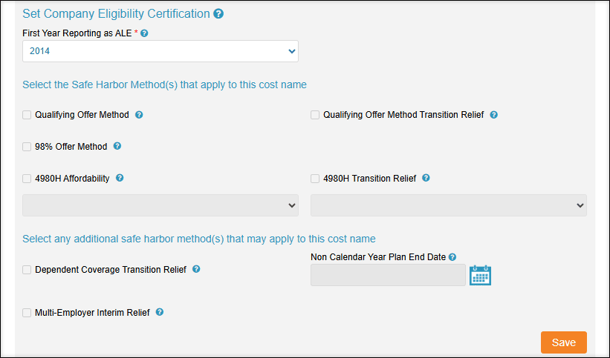
This section relates to the Safe Harbor relief codes available to Employers under the ACA. Consult your insurance broker or ACA consultant before submitting this to Checkwriters.
-
First Year Reporting as ALE: This field is strictly informational and can be used for your own record-keeping purposes.
Select the Safe Harbor Method(s) that apply to this cost name
- Qualifying Offer Method: This field is strictly informational and can be used for your own record-keeping purposes.
- Qualifying Offer Method Transition Relief: This is a legacy option and is no longer supported.
- 98% Offer Method: This field is strictly informational and can be used for your own record-keeping purposes.
- 4980H Affordability: This field is your self-certification that your health insurance plan is affordable under ACA guidelines. Select the method used to determine that the health plan is affordable using the dropdown menu.
- FPL - Federal Poverty Level
- Rate of Pay
- W2 Box 1 Wages
Important: Checkwriters highly recommends that you consult with your benefits broker on which affordability method may be applicable each year.
-
4980H Transition Relief: This is a legacy option and is no longer supported.
Select any additional safe harbor method(S) that may apply to this cost name
- Dependent Coverage Transition Relief: This is a legacy option and is no longer supported.
- Non Calendar Year Plan End Date: This is a legacy option and is no longer supported.
- Multi-Employer Interim Relief: Check this box if this is a union-sponsored health plan.
Assign Attributes to Employee Group
Before assigning the Cost & Compliance record attributes to an Employee Group, thoroughly review the data you’ve entered with your insurance broker or ACA consultant and select Save.
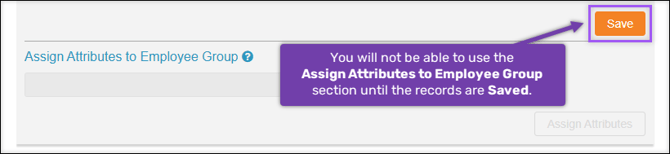
After saving your Cost and Compliance records, apply the plan details to your employees by assigning the Employee Group.
Select the applicable Employee Group from the Assign Attributes to Employee Group drop-down menu, then select Assign Attributes.
Important: Cost and Compliance records are not finalized until after the records have been assigned to an ACA Employee Group.