---
title: "Earnings: Reduce Auto Pay"
description: The Reduce Auto Pay process automatically adjusts a salaried employee's default hours after time off is entered in Payroll.
---
[Skip to content](https://help.checkwriters.com/knowledge/earnings-reduce-auto-pay#main-content)
English
Show submenu for translations

Open main navigation
Close main navigation
- English
Show submenu for translations
- [Checkwriters Login](https://www.checkwriterspayrollhr.com/)
[Checkwriters Login](https://www.checkwriterspayrollhr.com/)
Hello. How can we help you?
- There are no suggestions because the search field is empty.
1. [Checkwriters Knowledge Base](https://help.checkwriters.com/knowledge?hsLang=en)
2. [Company](https://help.checkwriters.com/knowledge/company?hsLang=en)
3. [Earnings](https://help.checkwriters.com/knowledge/company?hsLang=en#earnings)
# Earnings: Reduce Auto Pay
## The Reduce Auto Pay process automatically adjusts a salaried employee's default hours after time off is entered in Payroll.
[Overview](https://help.checkwriters.com/knowledge/earnings-reduce-auto-pay#overview)
[Setup](https://help.checkwriters.com/knowledge/earnings-reduce-auto-pay#setup)
- [Earnings Setup](https://help.checkwriters.com/knowledge/earnings-reduce-auto-pay#earnings)
- [Employee Salary Setup](https://help.checkwriters.com/knowledge/earnings-reduce-auto-pay#salary)
- [Hourly Employees](https://help.checkwriters.com/knowledge/earnings-reduce-auto-pay#hourly)
[Verify Results](https://help.checkwriters.com/knowledge/earnings-reduce-auto-pay#verify)
### Overview
Admin users can turn on **Reduce Auto Pay** for specific earning codes. When these codes are used in Payroll [Detail Entry](https://help.checkwriters.com/knowledge/payroll-detail-entry?hsLang=en)or [Quick Entry](https://help.checkwriters.com/knowledge/payroll-quick-entry?hsLang=en), they will automatically adjust the employee’s standard salary.
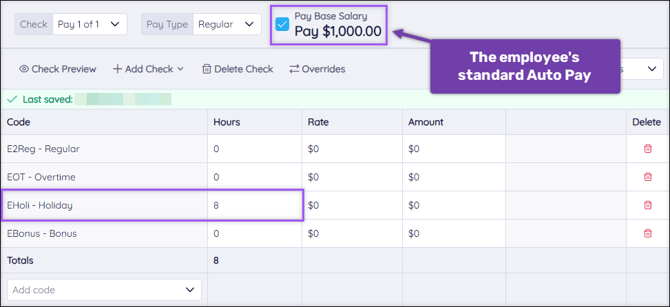
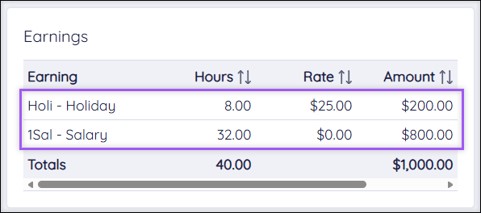
For example, if a weekly salaried employee normally works 40 hours per pay period but takes 8 hours of time off, the Reduce Auto Pay process will automatically adjust their 40 hours worked to 32 hours to accommodate the time off.
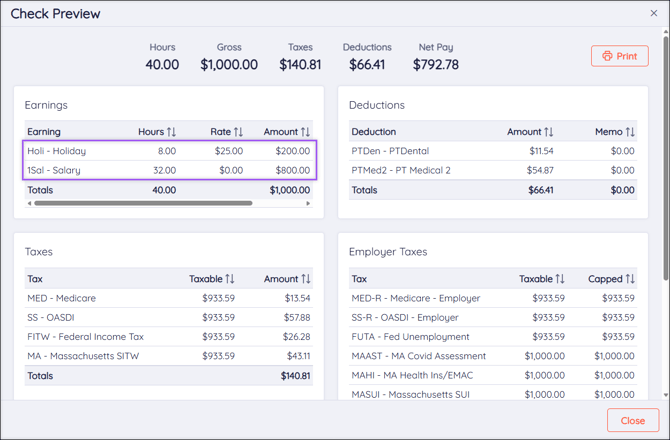
In the image below, the earning code “Holiday” has been set to **Reduce Auto Pay**. 8 hours of Holiday time were entered in Payroll, so the Reduce Auto Pay feature automatically adjusted the 40 Salary hours to 32 hours.
Check Preview:
### Setup
#### Earnings Setup
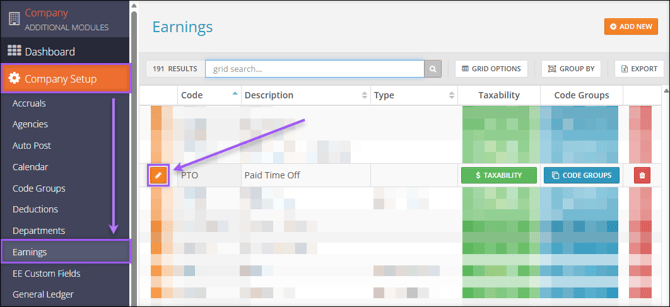
To start the Reduce Auto Pay setup, navigate to **Company (module) → Company Setup → Earnings**.
- Select  **Edit** on the Earning code you wish to reduce—common earning codes to apply this process to include Paid Time Off, Holiday, and Vacation.
- Check the **Reduce Auto Pay** checkbox.
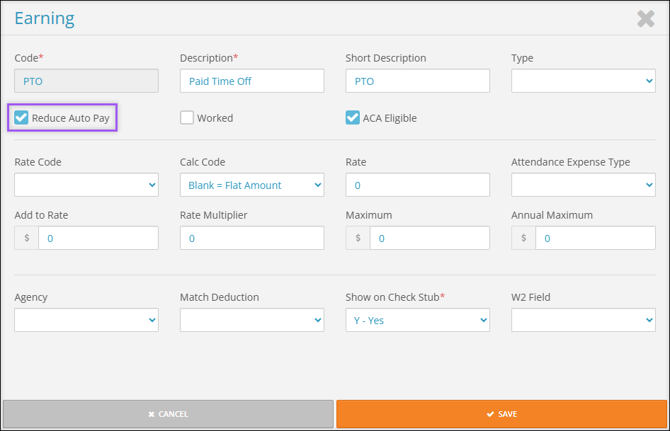
- Select **Save**.
- Repeat this process for as many Earning codes as you wish.
**Note:** This Earnings setup affects ALL employees with [Auto Pay](https://help.checkwriters.com/knowledge/payroll-detail-entry?hsLang=en#autopay) set up on their [Base Rate](https://help.checkwriters.com/knowledge/employee-center-rate?hsLang=en#add-or-edit). If an employee’s hourly rate isn’t entered, their regular pay will be reduced, but their time off won’t calculate properly, leaving them underpaid.
### Employee Salary Setup
After setting up the Earnings codes, navigate to **HR Admin → Manage Employees → Employee Center → select  Employee → Payroll (tab) →** [**Rate (tab)**](https://help.checkwriters.com/knowledge/employee-center-rate?hsLang=en) to finalize employee salary setup.
- Select  **Edit** on the employee’s active [**Base Rate**](https://help.checkwriters.com/knowledge/employee-center-rate?hsLang=en).
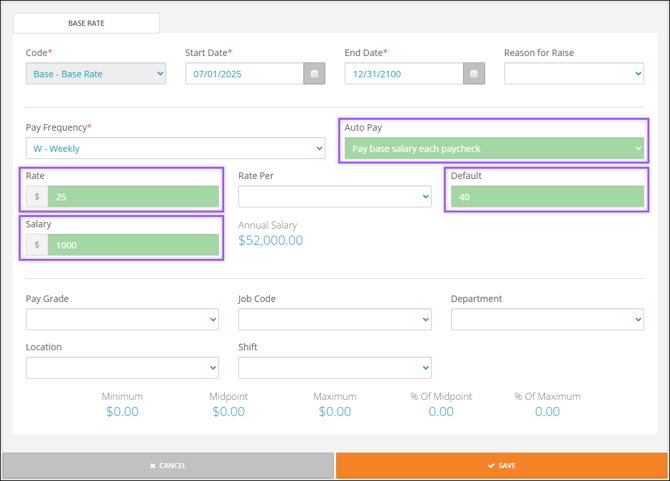
Four fields MUST be filled to enable the proper Reduce Auto Pay setup.
- **Auto Pay**: Select **Pay base salary each paycheck** from the drop-down menu.
- **Rate**: The employee’s hourly rate. Calculate this by dividing the employee’s salary per pay period (**Salary** field) by their regular hours per pay period (**Default** field). This MUST be calculated correctly to ensure proper payment.
- **Salary**: The employee’s salary per pay period.
- **Default**: The number of regular hours the employee works per pay period.
Select **Save**. Repeat this for each employee who should be set up with the Reduce Auto Pay function.
**More Info:** Learn more about [Employee Center: Rate](https://help.checkwriters.com/knowledge/employee-center-rate?hsLang=en).
##### Hourly Employees
This feature is typically used for salaried employees, but it can be set up for hourly employees. Follow these steps for an hourly employee’s setup:
- Navigate to **HR Admin → Manage Employees → Employee Center → select  Employee → Information (tab) → Rate (tab).**
- Select  **Edit** on the employee’s active **Base Rate**.
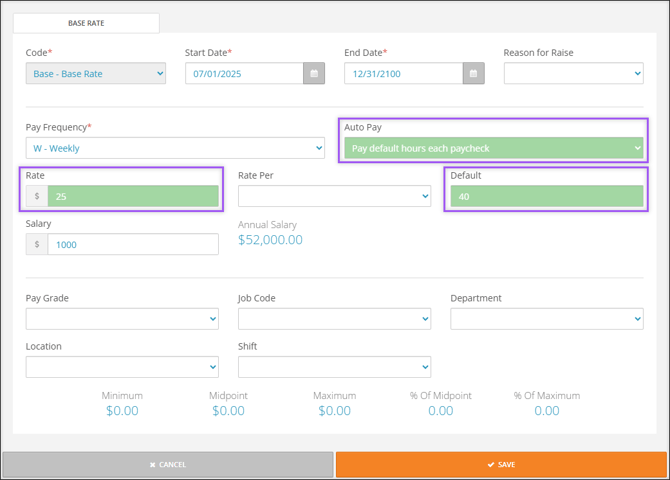
For hourly employees, only three fields must be filled to enable the proper Reduce Auto Pay setup:
- **Auto Pay**: Select **Pay default hours each paycheck** from the drop-down menu.
- **Rate**: The employee’s hourly rate.
- **Default**: The number of regular hours the employee works per pay period.
Select **Save**.
### Verify Results
Once you’ve completed setup, verify that the employee’s hours and pay look correct using the **Check Preview** feature in [Detail Entry](https://help.checkwriters.com/knowledge/payroll-detail-entry?hsLang=en#check-actions) before submitting your payroll.
**Important:** This change takes effect immediately. Any hours under an earning code with Reduce Auto Pay turned on will be reduced immediately. Please review totals using Check Preview and the Preprocess Register report.
**Note:** A salaried employee should not have more hours entered under the time off code(s) in Detail Entry than their default hours. If an employee should be paid more than their default hours, you will need to uncheck the [Autopay checkbox](https://help.checkwriters.com/knowledge/payroll-detail-entry?hsLang=en#check-information) in Detail Entry and adjust their hours using the earning codes in the [Detail Entry Grid](https://help.checkwriters.com/knowledge/payroll-detail-entry?hsLang=en#grid).
- [Employee Self-Service](https://help.checkwriters.com/knowledge/employee-self-service?hsLang=en#main-content)
- [My Dashboard](https://help.checkwriters.com/knowledge/employee-self-service?hsLang=en#my-dashboard)
- [My Info](https://help.checkwriters.com/knowledge/employee-self-service?hsLang=en#my-info)
- [My Payroll](https://help.checkwriters.com/knowledge/employee-self-service?hsLang=en#my-payroll)
- [My Time](https://help.checkwriters.com/knowledge/employee-self-service?hsLang=en#my-time)
- [Settings](https://help.checkwriters.com/knowledge/employee-self-service?hsLang=en#settings)
- [My Documents](https://help.checkwriters.com/knowledge/employee-self-service?hsLang=en#my-documents)
- [HR Admin](https://help.checkwriters.com/knowledge/hr-admin?hsLang=en#main-content)
- [Recruit Employees](https://help.checkwriters.com/knowledge/hr-admin?hsLang=en#recruit-employees)
- [Hire Employees](https://help.checkwriters.com/knowledge/hr-admin?hsLang=en#hire-employees)
- [Manage Employees](https://help.checkwriters.com/knowledge/hr-admin?hsLang=en#manage-employees)
- [Compliance](https://help.checkwriters.com/knowledge/hr-admin?hsLang=en#compliance)
- [ACA Center](https://help.checkwriters.com/knowledge/hr-admin?hsLang=en#aca-center)
- [Communications](https://help.checkwriters.com/knowledge/hr-admin?hsLang=en#communications)
- [Document Center](https://help.checkwriters.com/knowledge/hr-admin?hsLang=en#document-center)
- [Security Control Center](https://help.checkwriters.com/knowledge/hr-admin?hsLang=en#security-control-center)
- [Company](https://help.checkwriters.com/knowledge/company?hsLang=en#main-content)
- [Two-Factor Authentication (2FA)](https://help.checkwriters.com/knowledge/company?hsLang=en#two-factor-authentication-2fa)
- [Accruals](https://help.checkwriters.com/knowledge/company?hsLang=en#accruals)
- [Earnings](https://help.checkwriters.com/knowledge/company?hsLang=en#earnings)
- [EE Custom Fields](https://help.checkwriters.com/knowledge/company?hsLang=en#ee-custom-fields)
- [Payroll](https://help.checkwriters.com/knowledge/payroll?hsLang=en#main-content)
- [Payroll](https://help.checkwriters.com/knowledge/payroll?hsLang=en#payroll)
- [Taxes](https://help.checkwriters.com/knowledge/payroll?hsLang=en#taxes)
- [Time Management](https://help.checkwriters.com/knowledge/time-management?hsLang=en#main-content)
- [Time Management](https://help.checkwriters.com/knowledge/time-management?hsLang=en#time-management)
- [Time Off Center](https://help.checkwriters.com/knowledge/time-management?hsLang=en#time-off-center)
- [Reporting](https://help.checkwriters.com/knowledge/reporting?hsLang=en#main-content)
- [Standard reports](https://help.checkwriters.com/knowledge/reporting?hsLang=en#standard-reports)
- [Custom reports](https://help.checkwriters.com/knowledge/reporting?hsLang=en#custom-reports)
- [Release Notes](https://help.checkwriters.com/knowledge/release-notes?hsLang=en#main-content)
- [2026 Release Notes](https://help.checkwriters.com/knowledge/release-notes?hsLang=en#2026-release-notes)
- [2025 Release Notes](https://help.checkwriters.com/knowledge/release-notes?hsLang=en#2025-release-notes)
- [2024 Release Notes](https://help.checkwriters.com/knowledge/release-notes?hsLang=en#2024-release-notes)
[](http://checkwriters.com)
[mailto:email@email.com](mailto:email@email.com)
Copyright © 2026, Checkwriters, Inc.