
Each entry in the audit log captures the user’s Name, their Location (IP address), the kind of Event, the Date and time of the event, Browser type, and any additional Metadata that could be useful.
To access the Users Audit Log, navigate to HR Admin (module) → Security Control Center → Users Audit Log. You will then be required to set an audit duration, or you can create a custom timeline using the Override Duration checkbox.
Note: At any time, you can select Refresh to reload the audit log for the selected duration or select Re-Generate to select a new duration.
Events
The Users Audit Log tracks many different Events. These include standard records of when a user logs in or logs out of Checkwriters.
The log also tracks 2FA events, including enabling or disabling 2FA and passing or failing 2FA. 2FA Bypass events will also be recorded, and the Metadata column will provide further information about the bypass level used. Additional metadata will also be provided when a user utilizes the phone 2FA option.
Important: Users will only be able to see events for employees assigned to them.
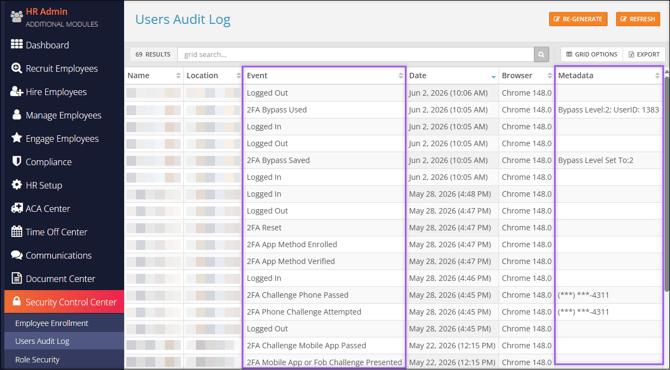
Tip: This Audit Log can be helpful if employees are unable to log in to WebClock. WebClocks can be restricted by IP address, so if the employee tries to log in from an unauthorized IP address, you will see that attempt in the log.
Take a look at the various Events that may return in the Users Audit Log.
| Event | Description | Metadata |
| Logged In |
The user successfully logged into Checkwriters. |
None. |
| Logged Out |
The user logged out of Checkwriters. |
None. |
| 2FA Bypass Saved |
An Admin user successfully initiated a 2FA Bypass. |
“Bypass Level Set To: __” Level 0: Normal sign-in with 2FA enabled. Level 1: 2FA disabled, user will be prompted with Security Questions. Level 2: Complete override, 2FA and Security Questions disabled. Learn more about 2FA Bypass Levels. |
| 2FA Bypass Failed to Save |
An Admin user attempted a 2FA Bypass, but it was not successful. |
“Bypass Level Set To: __” Level 0: Normal sign-in with 2FA enabled. Level 1: 2FA disabled, user will be prompted with Security Questions. Level 2: Complete override, 2FA and Security Questions disabled. Learn more about 2FA Bypass Levels. |
| 2FA Bypass Used |
After an Admin user initiated a 2FA Bypass, the employee successfully logged in, and 2FA was re-enabled. |
“Bypass Level: __ UserID: __” Level 0: Normal sign-in with 2FA enabled. Level 1: 2FA disabled, user will be prompted with Security Questions. Level 2: Complete override, 2FA and Security Questions disabled. Learn more about 2FA Bypass Levels. |
| 2FA Bypass Used - Failed to Reset Bypass Flag |
After an Admin user initiated a 2FA Bypass, the employee successfully logged in, but 2FA was not re-enabled. |
“Bypass Level: __ UserID: __” Level 0: Normal sign-in with 2FA enabled. Level 1: 2FA disabled, user will be prompted with Security Questions. Level 2: Complete override, 2FA and Security Questions disabled. Learn more about 2FA Bypass Levels. |
| 2FA Fob Method Verified |
Verification was successful when enrolling in the Fob 2FA method. |
None. |
| 2FA Fob Method Failed Verification |
The user failed to verify their Fob 2FA method. They may have entered the wrong 10-digit Fob code. |
None. |
| 2FA Phone Method Verified |
Verification was successful when enrolling in the Phone 2FA method. |
Masked phone number. |
| 2FA Phone Method Failed Verification |
The user failed to verify their Phone 2FA method. |
Masked phone number. |
| 2FA App Method Verified |
Verification was successful when enrolling in the Authentication App 2FA method. |
None. |
| 2FA App Method Failed Verification |
The user failed to verify their Authentication App 2FA method. |
None. |
| 2FA Phone Method Enrolled |
The user has enrolled in the Phone 2FA method. |
None. |
| 2FA Phone Method Failed to Enroll |
The user tried to enroll in the Phone 2FA method, but it failed to save. |
None. |
| 2FA Fob Method Enrolled |
The user has enrolled in the Fob 2FA method. |
None. |
| 2FA Fob Method Failed to Enroll |
The user tried to enroll in the Fob 2FA method, but it failed to save. |
None. |
| 2FA App Method Enrolled |
The user enrolled in the Authentication App 2FA method. |
None. |
| 2FA App Method Failed to Enroll |
The user tried to enroll in the Authentication App 2FA method, but it failed to save. |
None. |
| 2FA Phone Enabled |
The Phone 2FA method was enabled using the Two Factor Settings after logging in. |
Masked phone number. |
| 2FA Phone Disabled |
The Phone 2FA method was disabled using the Two Factor Settings after logging in. |
None. |
| 2FA Fob Enabled |
The Fob 2FA method was enabled using the Two Factor Settings after logging in. |
None. |
| 2FA Fob Disabled |
The Fob 2FA method was disabled using the Two Factor Settings after logging in. |
None. |
| 2FA Mobile App Enabled |
The Authenticator App 2FA method was enabled using the Two Factor Settings after logging in. |
None. |
| 2FA Mobile App Disabled |
The Authenticator App 2FA method was disabled using the Two Factor Settings after logging in. |
None. |
| 2FA Fob Challenge Presented |
The user was presented with a Fob 2FA challenge before logging in. |
None. |
| 2FA Mobile App Challenge Presented |
The user was presented with an Authenticator App 2FA challenge before logging in. |
None. |
| 2FA Challenge Failed |
The user failed a 2FA challenge. |
None. |
| 2FA Phone Challenge Attempted |
The user was presented with a Phone 2FA method challenge. |
Masked phone number. |
| 2FA Phone Call Made |
The user selected “Call Me instead” and a 2FA Phone call was made to the phone number listed in the Metadata column. |
Masked phone number. |
| 2FA Phone Call Failed |
The user selected “Call Me instead” and a 2FA Phone call was attempted to the phone number listed in the Metadata column. The call failed. |
Masked phone number. |
| 2FA Challenge Phone Passed |
The user successfully logged in using the Phone 2FA method. |
Masked phone number. |
| 2FA Challenge Fob Passed |
The user successfully logged in using the Fob 2FA method. |
None. |
| 2FA Challenge Mobile App Passed |
The user successfully logged in using the Authenticator App 2FA method. |
None. |
| 2FA Device Remembered |
The user successfully logged in, and the “Remember my Device” feature was used. |
None. |
| 2FA Reset |
The ESS user reset 2FA within the Two Factor Settings in Employee Self-Service (ESS). They may be asked to re-enroll upon their next login attempt. |
None. |