---
title: "Payroll: Dashboard"
description: The Payroll Dashboard provides access to the most important aspects of your payroll. Select your check date, enter and review pay data, create manual checks, and view notes all from the Payroll Dashboard.
---
[Skip to content](https://help.checkwriters.com/knowledge/payroll-dashboard#main-content)
English
Show submenu for translations

Open main navigation
Close main navigation
- English
Show submenu for translations
- [Checkwriters Login](https://www.checkwriterspayrollhr.com/)
[Checkwriters Login](https://www.checkwriterspayrollhr.com/)
Hello. How can we help you?
- There are no suggestions because the search field is empty.
1. [Checkwriters Knowledge Base](https://help.checkwriters.com/knowledge?hsLang=en)
2. [Payroll](https://help.checkwriters.com/knowledge/payroll?hsLang=en)
3. [Payroll](https://help.checkwriters.com/knowledge/payroll?hsLang=en#payroll)
# Payroll: Dashboard
## The Payroll Dashboard provides access to the most important aspects of your payroll. Select your check date, enter and review pay data, create manual checks, and view notes all from the Payroll Dashboard.
[Selected Check Date](https://help.checkwriters.com/knowledge/payroll-dashboard#check-date)
[Payroll Status](https://help.checkwriters.com/knowledge/payroll-dashboard#status)
[Open and Edit Payroll](https://help.checkwriters.com/knowledge/payroll-dashboard#open-edit)
- [Reset Payroll Status](https://help.checkwriters.com/knowledge/payroll-dashboard#reset-status)
[Payroll Notes](https://help.checkwriters.com/knowledge/payroll-dashboard#notes)
[Manual Check](https://help.checkwriters.com/knowledge/payroll-dashboard#manual-check)
[Print Checks](https://help.checkwriters.com/knowledge/payroll-dashboard#print-checks)
---
### Selected Check Date
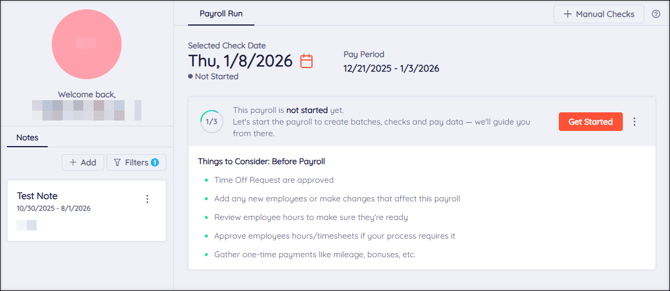
This section of the dashboard displays the selected check date and pay period. This will always default to the next unprocessed payroll.
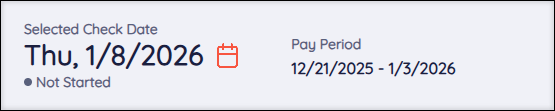
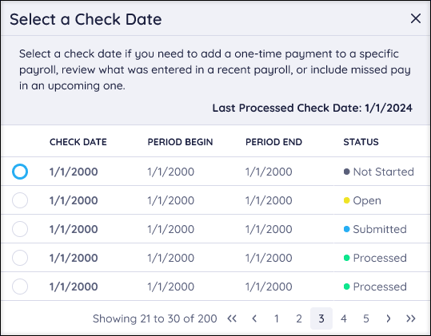
Change the Selected Check Date by selecting the **Calendar ** icon. The **Select a Check Date** aside will appear. Here, you can change the check date and view the status of previous check dates.
**Important:**
- The **Check Date** is the date the paychecks are sent out.
- The **Pay Period** is the set of dates tied to a Check Date. Employees will receive payment for hours worked during the Pay Period on the associated Check Date.
---
### Payroll Status
We help you track where you are in the payroll process with our Payroll Status. These steps show on the Payroll Dashboard and track your progress through the Batches, Import, Review & Submit, and Review pages.
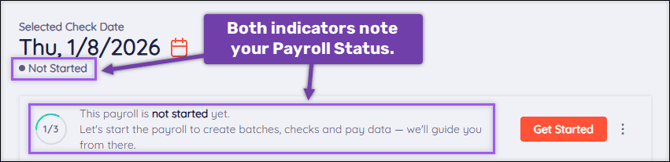
- **Status 1**: Not Started → The payroll for the Selected Check Date has not been opened or started.
- **Status 2**: Open → The payroll for the Selected Check Date has been opened. Some payroll data may have been entered. When a payroll is Open, it can be [reset](https://help.checkwriters.com/knowledge/payroll-dashboard#reset-status) to Not Started.
- **Status 3**: Submitted → The payroll for the Selected Check Date has been submitted by a member of your administration. At this stage, your payroll is actively being processed by Checkwriters.
- Once the payroll has been processed at Checkwriters, the final status will show as “Processed”.
**Tip:** Following each step of the payroll process, we’ll suggest helpful tips in the **Things to Consider** section of the dashboard. These reminders will help you remember the little things and ensure your payroll process is as smooth as possible.
---
### Open and Edit Payroll
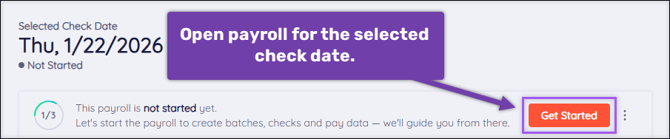
Select **Get Started** to open a payroll that hasn’t been started yet. After a payroll has been started, select **Enter & Review** to proceed to the [Batches](https://help.checkwriters.com/knowledge/payroll-batches?hsLang=en) page.

#### Reset Payroll Status
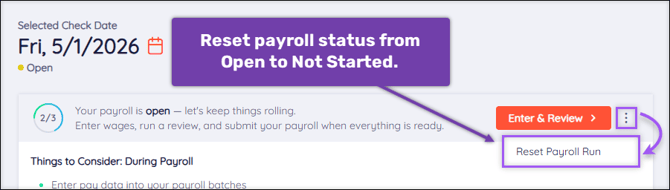
When a payroll check date is Open, you can reset the status to Not Started by selecting the **menu** , then selecting **Reset Payroll Run**. This will reset all data associated with the check date, including checks, imports, time off, and attendance (excluding Manual Checks).
**Tip:** This option is useful if a Check Date was opened earlier than it should have been.
---
### Payroll Notes
**Payroll Notes** can be used to keep track of important information about your payroll.
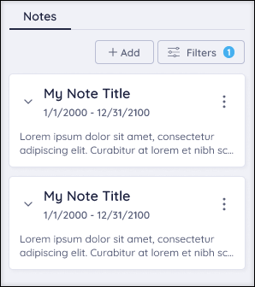
Select **Add** to create a new note. In addition to the editing note content, you can name the note, enter a Post Date, and an Expiration Date.
- Select **menu ** on a note to edit or delete the note.
- Select **Filter** to filter notes using a specific date range or by all **Upcoming** notes, all previous notes (**History**), all notes applicable **Today**, or **All** notes.
- Select the **down arrow** on a note to expand and view the full note.
---
### Manual Check
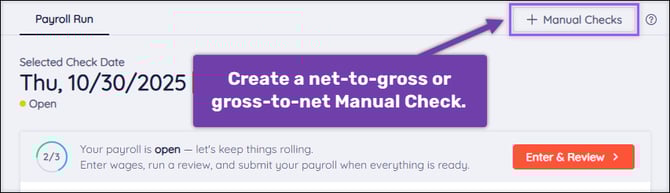
Select the **Manual Check** button to create a new gross-to-net or net-to-gross Manual Check. This creates a single check outside of a regularly scheduled payroll that is printed at your company and will not produce a live check sent out by Checkwriters.
**More Info:** Learn more about [Manual Checks](https://help.checkwriters.com/knowledge/payroll-manual-check?hsLang=en).
---
### Print Checks
If your company has the ability to print payroll checks using Checkwriters check stock, you can do so after the payroll has been processed by selecting **Print Checks** on the dashboard.
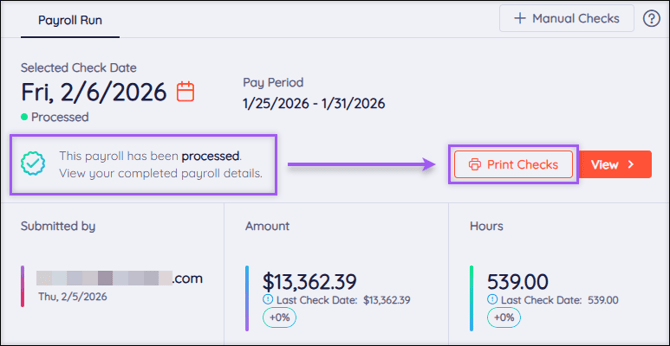
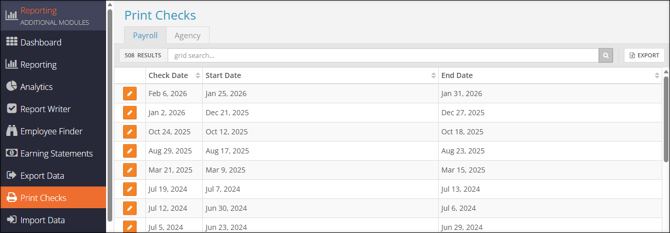
This will redirect you to **Reporting (module) → Print Checks**, where you can select a check date to print. Check dates will populate after the associated payroll has processed.
- [2026 Year-End Material](https://help.checkwriters.com/knowledge/2026-year-end-material?hsLang=en)
- [Employee Self-Service](https://help.checkwriters.com/knowledge/employee-self-service?hsLang=en#main-content)
- [My Dashboard](https://help.checkwriters.com/knowledge/employee-self-service?hsLang=en#my-dashboard)
- [My Info](https://help.checkwriters.com/knowledge/employee-self-service?hsLang=en#my-info)
- [My Payroll](https://help.checkwriters.com/knowledge/employee-self-service?hsLang=en#my-payroll)
- [My Time](https://help.checkwriters.com/knowledge/employee-self-service?hsLang=en#my-time)
- [Settings](https://help.checkwriters.com/knowledge/employee-self-service?hsLang=en#settings)
- [My Documents](https://help.checkwriters.com/knowledge/employee-self-service?hsLang=en#my-documents)
- [HR Admin](https://help.checkwriters.com/knowledge/hr-admin?hsLang=en#main-content)
- [Recruit Employees](https://help.checkwriters.com/knowledge/hr-admin?hsLang=en#recruit-employees)
- [Hire Employees](https://help.checkwriters.com/knowledge/hr-admin?hsLang=en#hire-employees)
- [Manage Employees](https://help.checkwriters.com/knowledge/hr-admin?hsLang=en#manage-employees)
- [Compliance](https://help.checkwriters.com/knowledge/hr-admin?hsLang=en#compliance)
- [ACA Center](https://help.checkwriters.com/knowledge/hr-admin?hsLang=en#aca-center)
- [Communications](https://help.checkwriters.com/knowledge/hr-admin?hsLang=en#communications)
- [Document Center](https://help.checkwriters.com/knowledge/hr-admin?hsLang=en#document-center)
- [Security Control Center](https://help.checkwriters.com/knowledge/hr-admin?hsLang=en#security-control-center)
- [Company](https://help.checkwriters.com/knowledge/company?hsLang=en#main-content)
- [Two-Factor Authentication (2FA)](https://help.checkwriters.com/knowledge/company?hsLang=en#two-factor-authentication-2fa)
- [Accruals](https://help.checkwriters.com/knowledge/company?hsLang=en#accruals)
- [Earnings](https://help.checkwriters.com/knowledge/company?hsLang=en#earnings)
- [EE Custom Fields](https://help.checkwriters.com/knowledge/company?hsLang=en#ee-custom-fields)
- [Payroll](https://help.checkwriters.com/knowledge/payroll?hsLang=en#main-content)
- [Payroll](https://help.checkwriters.com/knowledge/payroll?hsLang=en#payroll)
- [Taxes](https://help.checkwriters.com/knowledge/payroll?hsLang=en#taxes)
- [Time Management](https://help.checkwriters.com/knowledge/time-management?hsLang=en#main-content)
- [Time Management](https://help.checkwriters.com/knowledge/time-management?hsLang=en#time-management)
- [Time Off Center](https://help.checkwriters.com/knowledge/time-management?hsLang=en#time-off-center)
- [Reporting](https://help.checkwriters.com/knowledge/reporting?hsLang=en#main-content)
- [Standard reports](https://help.checkwriters.com/knowledge/reporting?hsLang=en#standard-reports)
- [Custom reports](https://help.checkwriters.com/knowledge/reporting?hsLang=en#custom-reports)
- [Release Notes](https://help.checkwriters.com/knowledge/release-notes?hsLang=en#main-content)
- [2026 Release Notes](https://help.checkwriters.com/knowledge/release-notes?hsLang=en#2026-release-notes)
- [2025 Release Notes](https://help.checkwriters.com/knowledge/release-notes?hsLang=en#2025-release-notes)
- [2024 Release Notes](https://help.checkwriters.com/knowledge/release-notes?hsLang=en#2024-release-notes)
[](http://checkwriters.com)
[mailto:email@email.com](mailto:email@email.com)
Copyright © 2026, Checkwriters, Inc.