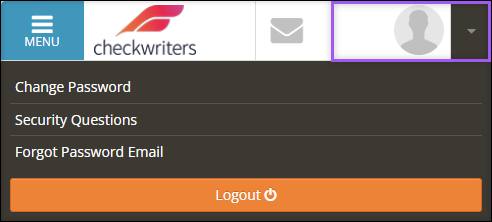
These settings can be accessed in the Name/Profile Picture drop-down menu.
Change Password
Security Questions
Forgot Password Email
Change Password
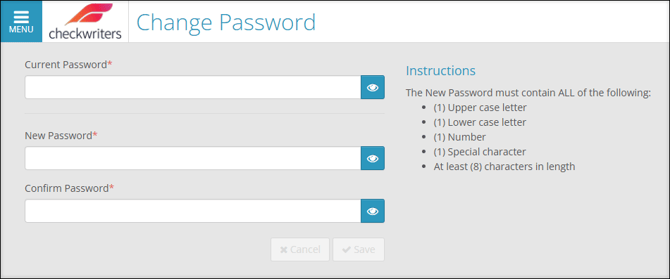
You may need to change your password after logging in if your password is about to expire, you’re completing “Forgot Password” steps, or for another reason. Follow these steps to change your password after successfully logging in:
- Select your Name/Profile Picture and select Change Password from the menu.
- Enter the password you used to log in to ESS in the Current Password field.
- Enter a new password into the New Password field.
- Enter the new password again in the Confirm Password field.
- Select Save.
Best Practice: If logging in on your personal mobile device, save your login credentials to your device. Learn more about Remember Login Credentials.
Forgot your password? Check out our Forgot My Password article.
Security Questions
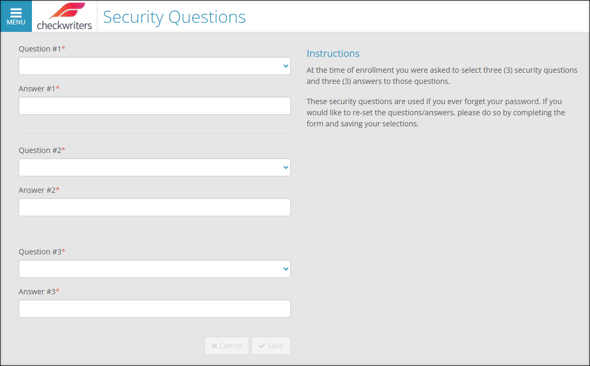
When you first enrolled in Checkwriters ESS, you selected three security questions and answers. These questions are used if you ever forget your password. If you’d like to change these questions, you can reset the selections.
- Select your Name/Profile Picture and select Security Questions.
- Select a question from the drop-down menu and enter your answer in the following field.
- Repeat for all three security questions.
- Select Save.
Best Practice: Choose questions whose answers you know you’ll be able to remember.
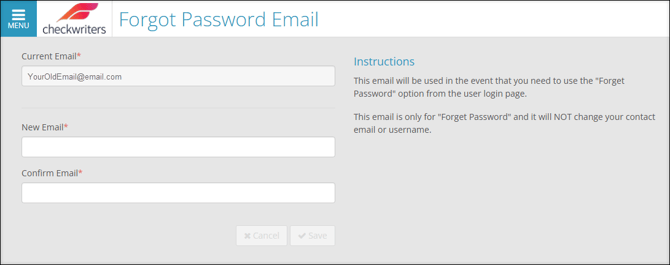
Forgot Password Email
In the event that you need to use the “Forgot Password” option from the login page, the password recovery email will be sent to this address on file. After a successful login, you can change the email address on file.
- Select your Name/Profile Picture and select Forgot Password Email. The email address currently on file will be listed in the Current Email field.
- Enter the email address you would like to now use for the “Forgot Password” option in the New Email field.
- Re-enter the new email address in the Confirm Email field.
Important: This email is only for “Forgot Password” settings and will NOT change your ESS contact email or username.