Welcome
My Info
- Direct Deposits
Form I-9
Tasks
- Documents
- Upload
Complete
Important: Before you start Onboarding, you must Create Your Checkwriters ESS Account.
Welcome
The Onboarding experience starts with the Welcome section, an informational page that may include a welcome message, videos, company leaders, and any services your company may offer. Select Next when you have finished reviewing this material.
My Info
The My Info section requires you to fill in the following fields:
- First and Last Name
- Should already be entered, but can be edited.
- Birth Date
- Gender
- SSN (Social Security Number)
- If your employer has already entered your SSN, you do not have to re-enter it. If your employer has not entered your SSN, do so and confirm.
- Home Address
- Veteran Information
- Federal and State Filing Status
- I-9 Employment Eligibility
The remaining fields are optional. However, you should fill in as much information as possible.
Direct Deposits
You may also be required to add at least one Direct Deposit account.
More Info: Learn more about Direct Deposits in Onboarding and how to fill out this section.
Select Next to move on to the next step of Onboarding.
Form I-9
Note: Your Onboarding experience may not include this section.
IRS Form I-9, Employment Eligibility Verification, verifies an employee’s identity and employment authorization.
Follow the instructions to fill out the required fields.
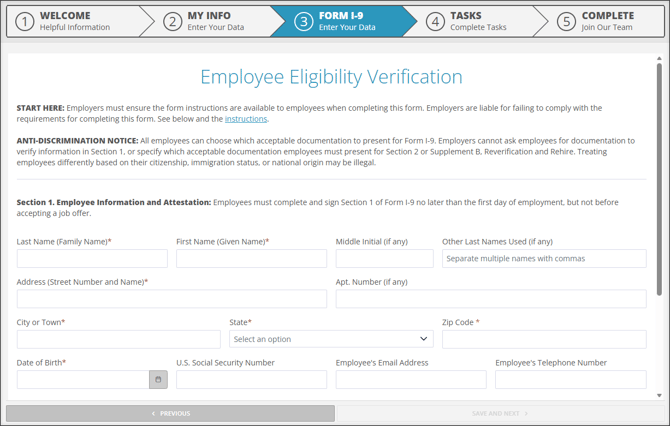
Select Save and Next to continue to the next step of Onboarding. You will be asked to sign your Form I-9 in the Documents section of the next step.
Tasks
The Tasks section is where you will fill out your Emergency Contact and Dependents information. You will also be required to read and electronically sign any applicable Documents and complete any Uploads.
Documents
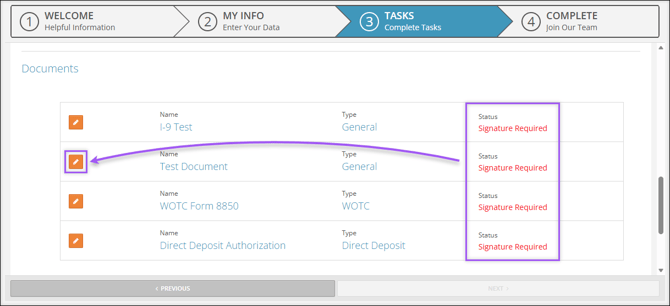
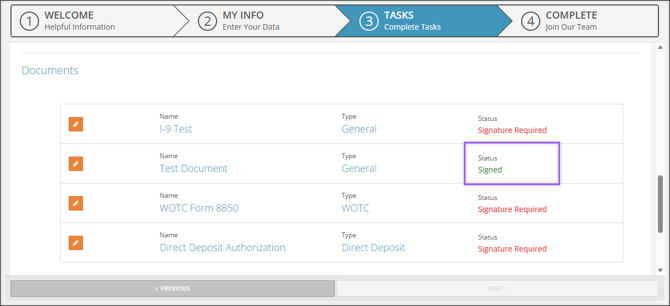
The Status of a document will indicate what is required of you. Select Edit  to read and sign a document.
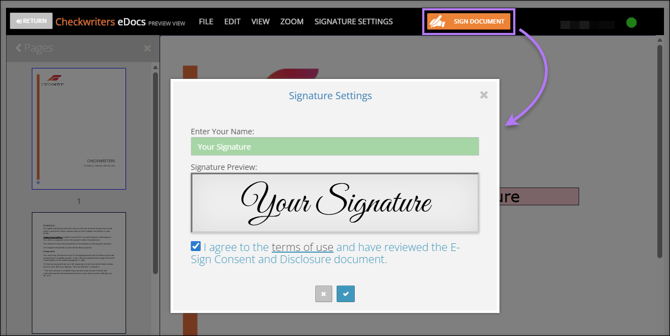
After reviewing a document, select Sign Document. Type your full name, review the Terms of Use for E-Sign, select the "I agree" checkbox, and select the Check  to finalize your signature and sign the document. This signature will be saved for use on any other Documents you may need to sign suring Onboarding.
Once you have successfully signed a document, its status will show as Signed.
Upload
You may also be required to upload certain files for your employer. Required uploads wil be marked with a checkmark. To upload a file, select Upload  , browse files in the Upload File pop-up, and select Save.
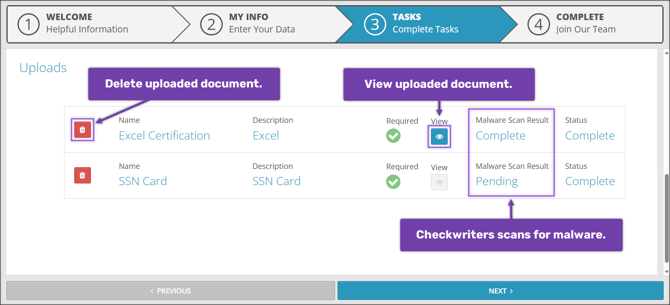
Important: Uploaded files are scanned for malware. Malware Scan Results may come back as "Pending" as the system processes your file. In most cases, you can refresh the page and will see a "Complete" result. If a file fails the malware scan, you will be asked to upload a new file.
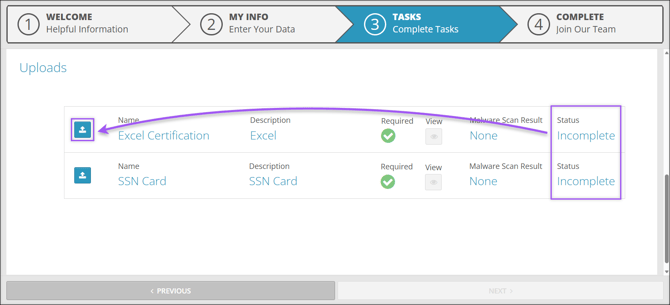
Once a file is uploaded, the Status of the Upload will change to "Complete." You can also View  the uploaded document or Delete
  it, allowing you to upload a different file.
After all Tasks are complete, select Next to move to the final step of Onboarding.
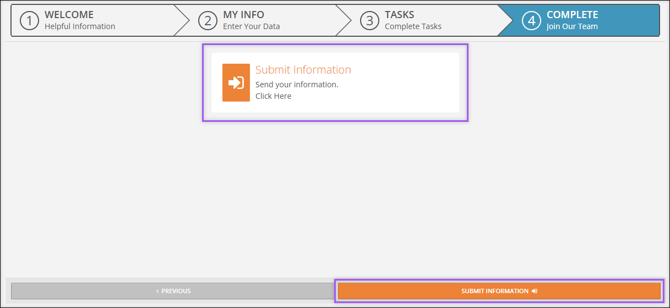
Complete
The final step of the Onboarding process is to submit your information. Your manager will be notified that you've finished Onboarding and will be able to activate your account.