---
title: "06/11/2026 Release Notes: Payroll Restart, Negative Taxable Wages, 2FA Audit Logging"
description: These release notes document Reset Payroll Status, Negative Taxable Wages, Suppress Tax Warnings, 2FA Audit Logging, and QSRSoft enhancements.
---
[Skip to content](https://help.checkwriters.com/knowledge/06/11/2026-release-notes#main-content)
English
Show submenu for translations

Open main navigation
Close main navigation
- English
Show submenu for translations
- [Checkwriters Login](https://www.checkwriterspayrollhr.com/)
[Checkwriters Login](https://www.checkwriterspayrollhr.com/)
Hello. How can we help you?
- There are no suggestions because the search field is empty.
1. [Checkwriters Knowledge Base](https://help.checkwriters.com/knowledge?hsLang=en)
2. [Release Notes](https://help.checkwriters.com/knowledge/release-notes?hsLang=en)
3. [2026 Release Notes](https://help.checkwriters.com/knowledge/release-notes?hsLang=en#2026-release-notes)
# 06/11/2026 Release Notes: Payroll Restart, Negative Taxable Wages, 2FA Audit Logging
## These release notes document improvements to the Checkwriters software.
[Payroll](https://help.checkwriters.com/knowledge/06/11/2026-release-notes#payroll)
- [Reset Payroll Status](https://help.checkwriters.com/knowledge/06/11/2026-release-notes#reset-payroll)
- [Company Calendar](https://help.checkwriters.com/knowledge/06/11/2026-release-notes#calendar)
- [Negative Taxable Wages](https://help.checkwriters.com/knowledge/06/11/2026-release-notes#negative-taxable-wages)
- [Suppress Tax Warnings](https://help.checkwriters.com/knowledge/06/11/2026-release-notes#tax-warnings)
[Security Control Center – 2FA Audit Logging](https://help.checkwriters.com/knowledge/06/11/2026-release-notes#audit-log)
[QSRSoft Management](https://help.checkwriters.com/knowledge/06/11/2026-release-notes#qsrsoft)
- [QSR Labor Detail File Format Change for Miscellaneous Pay (Dollar-Only Records)](https://help.checkwriters.com/knowledge/06/11/2026-release-notes#qsr-labor)
- [QSR Data Validation Enhancements](https://help.checkwriters.com/knowledge/06/11/2026-release-notes#qsr-validation)
- [Field Length Validation](https://help.checkwriters.com/knowledge/06/11/2026-release-notes#field-length)
- [Invalid Numeric Values](https://help.checkwriters.com/knowledge/06/11/2026-release-notes#numeric-values)
- [Invalid or Unexpected Data Formats](https://help.checkwriters.com/knowledge/06/11/2026-release-notes#data-formats)
---
### Payroll
#### Reset Payroll Status
Users with access to Payroll and permission to start batches can now select **Reset Payroll Run** to reset the payroll run status to **Not Started**.
**Note:** The option to reset a payroll run is helpful if a payroll run was opened earlier than it should have been.
Setting the payroll run back to the **Not Started** status allows it to be opened again at a later date. When resetting a payroll run back to Not Started, all data, including checks, imports, time off, and attendance (excluding Manual Checks), will be deleted.
When an **Open** payroll run is selected, a new **Reset Payroll Run** option is now available.
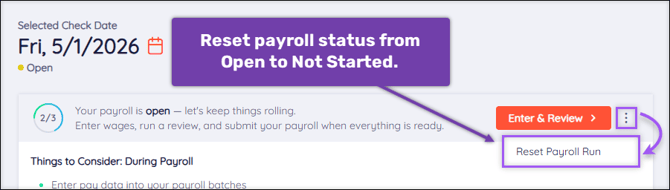
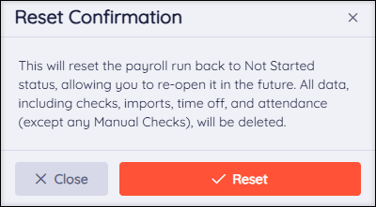
To reset the payroll run back to the Not Started status, select the **Reset Payroll Run** option, then select the **Reset** button. Select **Close** if you do not want to reset the batch status.
When finished, the reset option will reset non-Voids/Manual (VM) batches from **Open** to **Not Started.**
****
**Note:** Only non-Voids/Manual (VM) batches can be reset from the Open status to Not Started Voids/Manual (VM) batches in a payroll run will remain Open.
##### Company Calendar
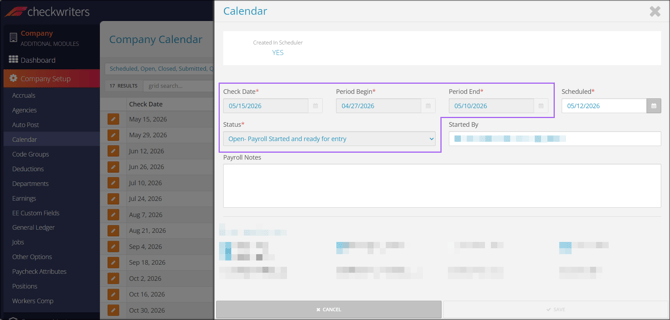
For users with access to **Company (module) → Company Setup → Calendar**, the payroll run and batch status fields are now view-only.
#### Negative Taxable Wages
When submitting payroll, we generate an error if a check results in negative taxable wages, with exclusions for pay types marked as Manual, NoCalc, and 3Pty. We have corrected an issue where this error was generated if a tax had negative taxable wages and/or had a negative amount. The error will now only be displayed if negative taxable wages are detected.
**More Info:** Refer to [Warnings and Errors in Payroll](https://help.checkwriters.com/knowledge/warnings-and-errors-in-payroll?hsLang=en#error-messages) for more detailed information.
#### Suppress Tax Warnings
When processing payroll, if an employee has **Suppress Missing Tax Warnings** selected, we have corrected an issue where specific tax warnings were displayed when they should not.
The following warnings will not be displayed if an employee has the **Suppress Missing Tax Warnings** checked off on their profile and any of these apply:
- MED is not set up on the employee
- MED-R is not set up on the employee
- SS is not set up on the employee
- SS-R is not set up on the employee
- FUTA is not set up on the employee
- SS43 is not set up on the employee
- SS43-R is not set up on the employee
- SSVI-R is not set up on the employee
- MED43 is not set up on the employee
- MED43-R is not set up on the employee
- MEDVI-R is not set up on the employee
**More Info:** Learn more about the [Suppress Missing Tax Warnings checkbox](https://help.checkwriters.com/knowledge/release-notes-suppress-missing-tax-warnings?hsLang=en)**.**
---
### Security Control Center – 2FA Audit Logging
The **Users Audit Log** in Checkwriters tracks login and logout activity and Two-Factor Authentication (2FA) events from users.
Each entry in the audit log captures the user’s **Name**, their **Location** (IP address), the kind of **Event**, the **Date** and time of the event, **Browser** type, and any additional **Metadata** that could be useful.
To access the Users Audit Log, navigate to **HR Admin (module) → Security Control Center → Users Audit Log**. You will then be required to set an audit duration, or you can create a custom timeline using the **Override Duration** checkbox.
**More Info:** Learn more about [Security Control Center: Users Audit Log](https://help.checkwriters.com/knowledge/security-control-center-users-audit-log?hsLang=en).
---
### QSRSoft Management
For users with access to the **QSRsoft Management** option within Checkwriters, we have added support for new QSR Labor Detail File Format Change, and added QSR Data Validation Enhancements during file processing.
#### QSR Labor Detail File Format Change for Miscellaneous Pay (Dollar-Only Records)
We have updated Checkwriters to support a recent QSR file format change.
QSR has updated the Labor Detail payroll file to include an additional column at the end of the file representing dollar amounts for each pay type. This change to their file enables support for miscellaneous pay entries where no hours are reported, only dollar amounts.
#### QSR Data Validation Enhancements
We have added additional validation checks related to field length handling, invalid values, and invalid or unexpected data formats.
Any import encountering one or more of these validation errors will prevent moving forward with the approval and import of the data. You can review and resolve reported errors via the **QSRSoft Management** → **Data Processing** pages.
##### Field Length Validation
During file processing, all character fields will allow a maximum length of 50 characters. If the incoming data field value exceeds 50 characters, the value will be truncated to fit within the 50-character limit, and the truncation will be logged as an error.
##### Invalid Numeric Values
During the import process, any field containing a value that does not match a system-defined numerical listing is now automatically set to blank and logged as an error.
Imports containing these errors are prevented from being approved until corrections are made.
##### invalid or Unexpected Data Formats
During the import process, fields are validated for proper formatting based on system-defined rules. If a field contains improperly formatted data (e.g., multiple values separated by commas where only a single value is expected), the record is now flagged and logged as an error.
Imports containing these errors are prevented from being approved until corrections are made.
- [2026 Year-End Material](https://help.checkwriters.com/knowledge/2026-year-end-material?hsLang=en)
- [Employee Self-Service](https://help.checkwriters.com/knowledge/employee-self-service?hsLang=en#main-content)
- [My Dashboard](https://help.checkwriters.com/knowledge/employee-self-service?hsLang=en#my-dashboard)
- [My Info](https://help.checkwriters.com/knowledge/employee-self-service?hsLang=en#my-info)
- [My Payroll](https://help.checkwriters.com/knowledge/employee-self-service?hsLang=en#my-payroll)
- [My Time](https://help.checkwriters.com/knowledge/employee-self-service?hsLang=en#my-time)
- [Settings](https://help.checkwriters.com/knowledge/employee-self-service?hsLang=en#settings)
- [My Documents](https://help.checkwriters.com/knowledge/employee-self-service?hsLang=en#my-documents)
- [HR Admin](https://help.checkwriters.com/knowledge/hr-admin?hsLang=en#main-content)
- [Recruit Employees](https://help.checkwriters.com/knowledge/hr-admin?hsLang=en#recruit-employees)
- [Hire Employees](https://help.checkwriters.com/knowledge/hr-admin?hsLang=en#hire-employees)
- [Manage Employees](https://help.checkwriters.com/knowledge/hr-admin?hsLang=en#manage-employees)
- [Compliance](https://help.checkwriters.com/knowledge/hr-admin?hsLang=en#compliance)
- [ACA Center](https://help.checkwriters.com/knowledge/hr-admin?hsLang=en#aca-center)
- [Communications](https://help.checkwriters.com/knowledge/hr-admin?hsLang=en#communications)
- [Document Center](https://help.checkwriters.com/knowledge/hr-admin?hsLang=en#document-center)
- [Security Control Center](https://help.checkwriters.com/knowledge/hr-admin?hsLang=en#security-control-center)
- [Company](https://help.checkwriters.com/knowledge/company?hsLang=en#main-content)
- [Two-Factor Authentication (2FA)](https://help.checkwriters.com/knowledge/company?hsLang=en#two-factor-authentication-2fa)
- [Accruals](https://help.checkwriters.com/knowledge/company?hsLang=en#accruals)
- [Earnings](https://help.checkwriters.com/knowledge/company?hsLang=en#earnings)
- [EE Custom Fields](https://help.checkwriters.com/knowledge/company?hsLang=en#ee-custom-fields)
- [Payroll](https://help.checkwriters.com/knowledge/payroll?hsLang=en#main-content)
- [Payroll](https://help.checkwriters.com/knowledge/payroll?hsLang=en#payroll)
- [Taxes](https://help.checkwriters.com/knowledge/payroll?hsLang=en#taxes)
- [Time Management](https://help.checkwriters.com/knowledge/time-management?hsLang=en#main-content)
- [Time Management](https://help.checkwriters.com/knowledge/time-management?hsLang=en#time-management)
- [Time Off Center](https://help.checkwriters.com/knowledge/time-management?hsLang=en#time-off-center)
- [Reporting](https://help.checkwriters.com/knowledge/reporting?hsLang=en#main-content)
- [Standard reports](https://help.checkwriters.com/knowledge/reporting?hsLang=en#standard-reports)
- [Custom reports](https://help.checkwriters.com/knowledge/reporting?hsLang=en#custom-reports)
- [Release Notes](https://help.checkwriters.com/knowledge/release-notes?hsLang=en#main-content)
- [2026 Release Notes](https://help.checkwriters.com/knowledge/release-notes?hsLang=en#2026-release-notes)
- [2025 Release Notes](https://help.checkwriters.com/knowledge/release-notes?hsLang=en#2025-release-notes)
- [2024 Release Notes](https://help.checkwriters.com/knowledge/release-notes?hsLang=en#2024-release-notes)
[](http://checkwriters.com)
[mailto:email@email.com](mailto:email@email.com)
Copyright © 2026, Checkwriters, Inc.