
We have added new functionality for Premier Clients, allowing employees to upload documents in their Checkwriters ESS portal and during the Onboarding process.
ESS Document Upload
Uploads in Onboarding Templates
- Create and Manage Uploads
- Add an Upload to an Onboarding Template
- Add an Upload to a Specific Employee's Onboarding
ESS Document Upload
Employees can now Upload files to their My Documents page.
More Info: Learn more about how employees can Upload Documents to ESS.
Which documents an employee can upload is dictated by the employer in the Document Center → Document Type Security page.
More Info: Learn more about creating Document Types.
Important: Uploaded files are scanned for malware. If a file fails the malware scan, employees will be asked to upload a new file.
Uploads in Onboarding Templates
Uploads in Onboarding allow employees to submit important files as requested by the employer.
Create and Manage Uploads
To create and manage Uploads, navigate to HR Admin (module) → Hire Employees → Onboarding Templates → Uploads (tab).
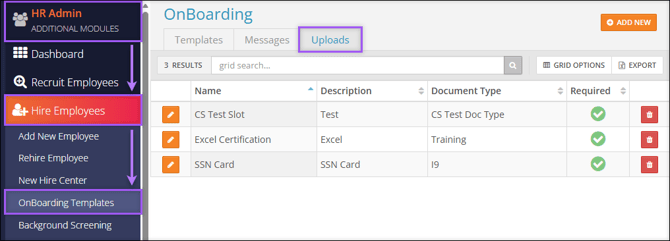
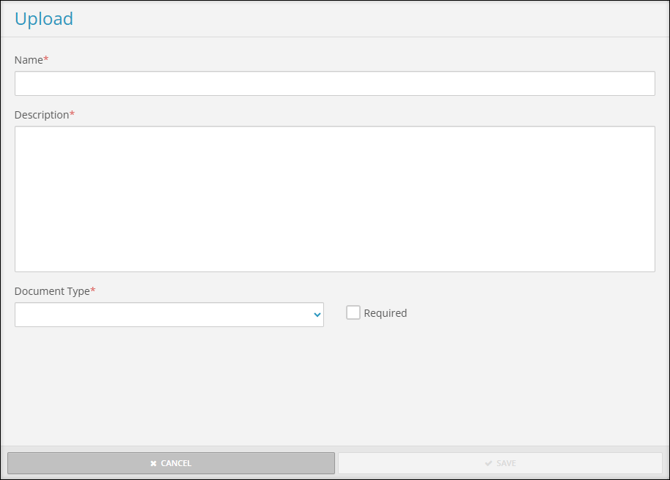
Select Add New to create a new Upload. The Upload aside will appear with the following fields:
- Name: Provide a title for the Upload.
- Description: Provide a short description of what the upload will require.
- Document Type: Select a Document Type from the dropdown menu.
- Required: Select the checkbox to make this upload required during Employee Onboarding.
Select Edit  to manage an existing Upload.
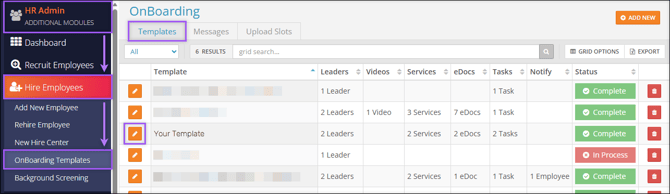
Add an Upload to an Onboarding Template
To add an Upload to an existing Onboarding Template, navigate to HR Admin (module) → Hire Employees → Onboarding Templates → Template (tab) → Edit Template → Uploads (tab).
- Drag an Upload from the Not Included section to the Included section.
- Select Edit to change whether the upload is required.
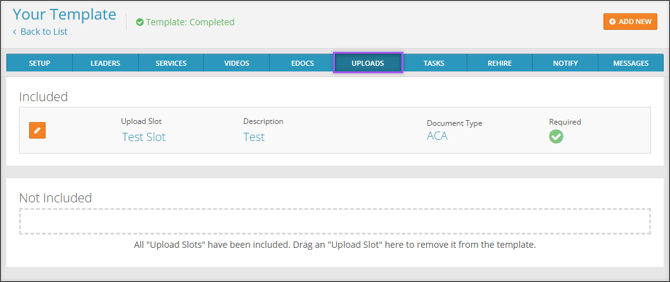
Note: You may also select Add New to create a new Upload. This will be saved and added to the Upload options shown in the Create and Manage Uploads section of this article.
Add an Upload to a Specific Employee's Onboarding
In addition to adding an Upload to an entire Onboarding Template, Uploads can be tailored to individual New Hires.
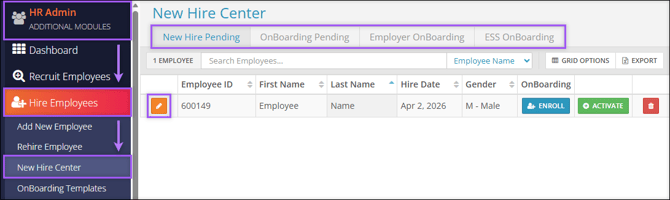
To add an Upload to an individual employee's Onboarding, navigate to HR Admin (module) → Hire Employees → New Hire Center. Within any of the four tabs of the New Hire Center, select Edit on an employee.
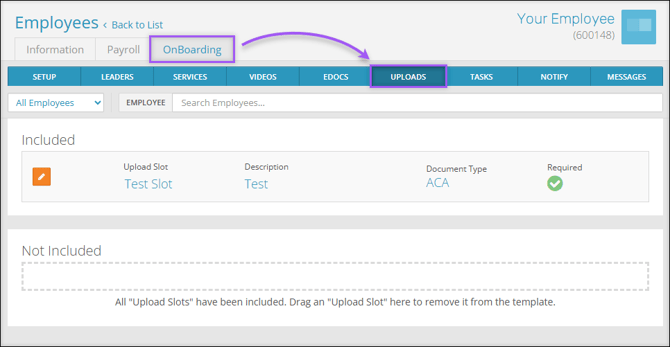
From the employee's editing page, navigate to Onboarding (tab) → Uploads (tab).
- Drag an Upload from the Not Included section to the Included section to add it to an employee's Onboarding Tasks.
- Select Edit to change whether the upload is required.
Note: Changes made on this page will only apply to the selected employee.
More Info: Check out our ESS Onboarding Guide for new employees.