---
title: View and Print Pay Statement
description: Checkwriters Employee Self-Service (ESS) users can view and print their pay statements as needed.
---
[Skip to content](https://help.checkwriters.com/knowledge/view-print-pay-statement#main-content)
English
Show submenu for translations

Open main navigation
Close main navigation
- English
Show submenu for translations
- [Checkwriters Login](https://www.checkwriterspayrollhr.com/)
[Checkwriters Login](https://www.checkwriterspayrollhr.com/)
Hello. How can we help you?
- There are no suggestions because the search field is empty.
1. [Checkwriters Knowledge Base](https://help.checkwriters.com/knowledge?hsLang=en)
2. [Employee Self-Service](https://help.checkwriters.com/knowledge/employee-self-service?hsLang=en)
3. [My Payroll](https://help.checkwriters.com/knowledge/employee-self-service?hsLang=en#my-payroll)
# View and Print Pay Statement
## Checkwriters Employee Self-Service (ESS) users can view and print their pay statements as needed.
After logging in to Checkwriters ESS, navigate to **My Payroll → My Pay**.
The **My Pay Dashboard** will display an overview of your most recent check in the **Current** tab.
Select **Print Pay Statement** on the dashboard to open and print a PDF of the most recent pay statement.
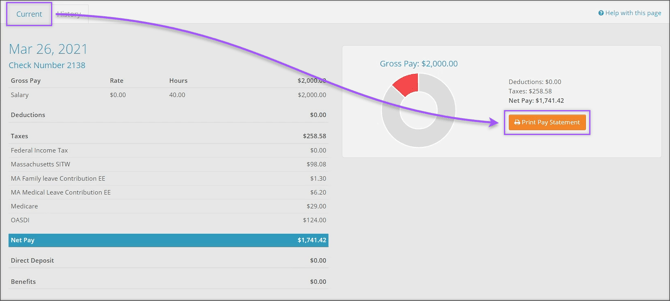
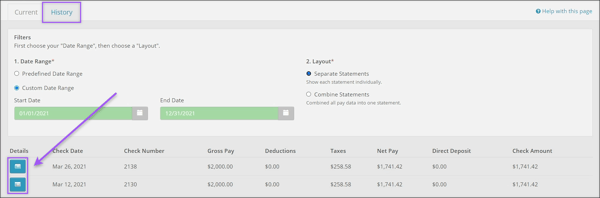
To view past pay statements, navigate to the **History** tab.
1. Set the **Date Range**. Use the dropdown menu to select a **Predefined Date Range** or enter your own **Custom Date Range**.
2. Select the **Layout** of the statements. You can show each statement within the date range individually with **Separate Statements**, or show all pay data in the date range in a single statement with **Combine Statements**.
3. Select **Details** to view further information about the selected statement.
4. Select **Print Pay Statement** to open and print a PDF of the statement.
- [Employee Self-Service](https://help.checkwriters.com/knowledge/employee-self-service?hsLang=en#main-content)
- [My Dashboard](https://help.checkwriters.com/knowledge/employee-self-service?hsLang=en#my-dashboard)
- [My Info](https://help.checkwriters.com/knowledge/employee-self-service?hsLang=en#my-info)
- [My Payroll](https://help.checkwriters.com/knowledge/employee-self-service?hsLang=en#my-payroll)
- [My Time](https://help.checkwriters.com/knowledge/employee-self-service?hsLang=en#my-time)
- [Settings](https://help.checkwriters.com/knowledge/employee-self-service?hsLang=en#settings)
- [My Documents](https://help.checkwriters.com/knowledge/employee-self-service?hsLang=en#my-documents)
- [HR Admin](https://help.checkwriters.com/knowledge/hr-admin?hsLang=en#main-content)
- [Recruit Employees](https://help.checkwriters.com/knowledge/hr-admin?hsLang=en#recruit-employees)
- [Hire Employees](https://help.checkwriters.com/knowledge/hr-admin?hsLang=en#hire-employees)
- [Manage Employees](https://help.checkwriters.com/knowledge/hr-admin?hsLang=en#manage-employees)
- [Compliance](https://help.checkwriters.com/knowledge/hr-admin?hsLang=en#compliance)
- [ACA Center](https://help.checkwriters.com/knowledge/hr-admin?hsLang=en#aca-center)
- [Communications](https://help.checkwriters.com/knowledge/hr-admin?hsLang=en#communications)
- [Document Center](https://help.checkwriters.com/knowledge/hr-admin?hsLang=en#document-center)
- [Security Control Center](https://help.checkwriters.com/knowledge/hr-admin?hsLang=en#security-control-center)
- [Company](https://help.checkwriters.com/knowledge/company?hsLang=en#main-content)
- [Two-Factor Authentication (2FA)](https://help.checkwriters.com/knowledge/company?hsLang=en#two-factor-authentication-2fa)
- [Accruals](https://help.checkwriters.com/knowledge/company?hsLang=en#accruals)
- [Earnings](https://help.checkwriters.com/knowledge/company?hsLang=en#earnings)
- [EE Custom Fields](https://help.checkwriters.com/knowledge/company?hsLang=en#ee-custom-fields)
- [Payroll](https://help.checkwriters.com/knowledge/payroll?hsLang=en#main-content)
- [Payroll](https://help.checkwriters.com/knowledge/payroll?hsLang=en#payroll)
- [Taxes](https://help.checkwriters.com/knowledge/payroll?hsLang=en#taxes)
- [Time Management](https://help.checkwriters.com/knowledge/time-management?hsLang=en#main-content)
- [Time Management](https://help.checkwriters.com/knowledge/time-management?hsLang=en#time-management)
- [Time Off Center](https://help.checkwriters.com/knowledge/time-management?hsLang=en#time-off-center)
- [Reporting](https://help.checkwriters.com/knowledge/reporting?hsLang=en#main-content)
- [Standard reports](https://help.checkwriters.com/knowledge/reporting?hsLang=en#standard-reports)
- [Custom reports](https://help.checkwriters.com/knowledge/reporting?hsLang=en#custom-reports)
- [Release Notes](https://help.checkwriters.com/knowledge/release-notes?hsLang=en#main-content)
- [2026 Release Notes](https://help.checkwriters.com/knowledge/release-notes?hsLang=en#2026-release-notes)
- [2025 Release Notes](https://help.checkwriters.com/knowledge/release-notes?hsLang=en#2025-release-notes)
- [2024 Release Notes](https://help.checkwriters.com/knowledge/release-notes?hsLang=en#2024-release-notes)
[](http://checkwriters.com)
[mailto:email@email.com](mailto:email@email.com)
Copyright © 2026, Checkwriters, Inc.