---
title: Tablet Timeclock Troubleshooting Guide
description: This article documents steps to troubleshoot various Tablet Timeclock issues.
---
[Skip to content](https://help.checkwriters.com/knowledge/tablet-timeclock-troubleshooting-guide#main-content)
English
Show submenu for translations

Open main navigation
Close main navigation
- English
Show submenu for translations
- [Checkwriters Login](https://www.checkwriterspayrollhr.com/)
[Checkwriters Login](https://www.checkwriterspayrollhr.com/)
Hello. How can we help you?
- There are no suggestions because the search field is empty.
1. [Checkwriters Knowledge Base](https://help.checkwriters.com/knowledge?hsLang=en)
2. [Time Management](https://help.checkwriters.com/knowledge/time-management?hsLang=en)
3. [Time Management](https://help.checkwriters.com/knowledge/time-management?hsLang=en#time-management)
# Tablet Timeclock Troubleshooting Guide
## For clients using the Checkwriters tablet Timeclocks, many timeclock-related issues can be resolved by rebooting/restarting the clock. And occasionally, the issue may stem from an issue with the internet connection.
This document will provide guidance on rebooting/restarting your clock, and if needed, checking the internet connection.
**Important:** This guide is for clients who use the Checkwriters tablet timeclocks; this guide does not cover troubleshooting for other types of timeclocks.
**Note:** This guide is also available by selecting the HELP button within the Time Management Module: **Time Management → Dashboard → Clock Status → HELP**
[Power Button Restart](https://help.checkwriters.com/knowledge/tablet-timeclock-troubleshooting-guide#power-restart)
[Windows Restart](https://help.checkwriters.com/knowledge/tablet-timeclock-troubleshooting-guide#windows-restart)
[Checkwriters Timeclock Approval Pages Not Showing Punches](https://help.checkwriters.com/knowledge/tablet-timeclock-troubleshooting-guide#not-showing-punches)
[Tablet Timeclock Internet Configuration](https://help.checkwriters.com/knowledge/tablet-timeclock-troubleshooting-guide#internet)
[All Other Timeclock Issues](https://help.checkwriters.com/knowledge/tablet-timeclock-troubleshooting-guide#other)
### Power Button Restart
You can reboot/restart the clock by shutting down the power using the power button. Using this method, the clock will restart and power up automatically.
To do this, locate and hold down the power button for 30 seconds until the screen turns black; release the button and wait for the clock to power back on.
**Note:** The location of the power button varies based on the clock model. For most models, you will find a hole on the back side of the case, providing access to the power button.
**Important:** Timeclocks have a backup battery. Unplugging the timeclock will not reboot the timeclock.
### Windows Restart
You can restart the clock by accessing the Windows start button.
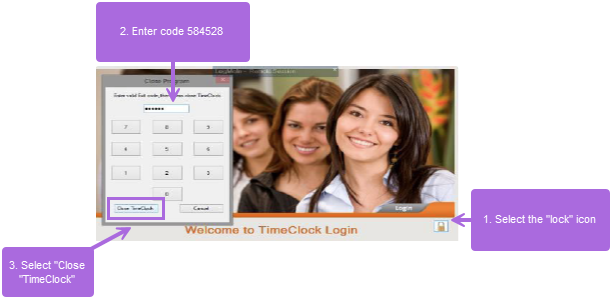
1. Select the lock icon  on the timeclock screen.
2. Type 584528 on the number pad as illustrated below.
3. Select “Close Timeclock”.
4. Select the Windows start button in the bottom left corner of the screen.
5. Select the Power option and choose “Restart”.
### Checkwriters Timeclock Approval Pages Not Showing Punches
If the clock appears to be successfully capturing punches, but the punches are not showing on the **Checkwriters TimeClock Approval** pages, the issue is likely related to the internet connection.
Refer to the [Tablet Timeclock Internet Configuration](https://help.checkwriters.com/knowledge/tablet-timeclock-troubleshooting-guide#internet) section below for more information.
**Note:** Punches that are showing as successful on the timeclock will be stored on the clock and will synchronize over to Checkwriters once connected/reconnected to the internet.
### Tablet Timeclock Internet Configuration
1. Select the lock icon  on the timeclock screen.
2. Type 584528 on the number pad as illustrated below.
3. Select “Close Timeclock”.
4. At the bottom of the taskbar, there should be an internet  icon. Select it to open the internet connection manager.
1. 
5. From the list of available WiFi networks:
1. Select your network from the list.
2. Select **Connect**.
3. Type in your password and select **Next**.
**Note:** If the keyboard is not displayed, you can tap the keyboard icon next to the date/time on the taskbar.
**Tip:** If you have a wired connection, it should show your connection in the available networks list, and it can be configured the same way.
After successfully connecting to the internet, you should see “connected” next to your Wi-Fi network.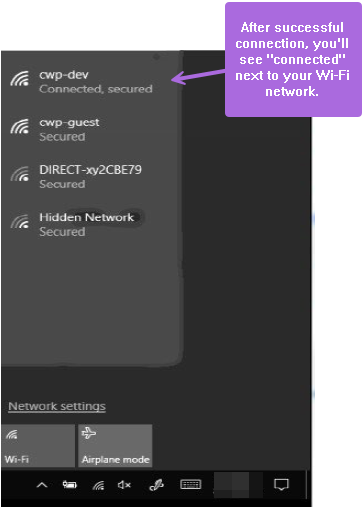
**Important:** If you notice that the device reports no internet connection, reconnect the Ethernet adapter to the clock to reinitialize the network connection.
### All Other Timeclock Issues
For all other timeclock issues, contact Checkwriters Technical Support at [timeclock@checkwriters.com](mailto:timeclock@checkwriters.com), and please include the following in your email:
- Your Company Code
- A brief explanation of the issue
- Screenshots (if applicable)
- Any troubleshooting steps you have already taken
- [Employee Self-Service](https://help.checkwriters.com/knowledge/employee-self-service?hsLang=en#main-content)
- [My Dashboard](https://help.checkwriters.com/knowledge/employee-self-service?hsLang=en#my-dashboard)
- [My Info](https://help.checkwriters.com/knowledge/employee-self-service?hsLang=en#my-info)
- [My Payroll](https://help.checkwriters.com/knowledge/employee-self-service?hsLang=en#my-payroll)
- [My Time](https://help.checkwriters.com/knowledge/employee-self-service?hsLang=en#my-time)
- [Settings](https://help.checkwriters.com/knowledge/employee-self-service?hsLang=en#settings)
- [My Documents](https://help.checkwriters.com/knowledge/employee-self-service?hsLang=en#my-documents)
- [HR Admin](https://help.checkwriters.com/knowledge/hr-admin?hsLang=en#main-content)
- [Recruit Employees](https://help.checkwriters.com/knowledge/hr-admin?hsLang=en#recruit-employees)
- [Hire Employees](https://help.checkwriters.com/knowledge/hr-admin?hsLang=en#hire-employees)
- [Manage Employees](https://help.checkwriters.com/knowledge/hr-admin?hsLang=en#manage-employees)
- [Compliance](https://help.checkwriters.com/knowledge/hr-admin?hsLang=en#compliance)
- [ACA Center](https://help.checkwriters.com/knowledge/hr-admin?hsLang=en#aca-center)
- [Communications](https://help.checkwriters.com/knowledge/hr-admin?hsLang=en#communications)
- [Document Center](https://help.checkwriters.com/knowledge/hr-admin?hsLang=en#document-center)
- [Security Control Center](https://help.checkwriters.com/knowledge/hr-admin?hsLang=en#security-control-center)
- [Company](https://help.checkwriters.com/knowledge/company?hsLang=en#main-content)
- [Two-Factor Authentication (2FA)](https://help.checkwriters.com/knowledge/company?hsLang=en#two-factor-authentication-2fa)
- [Accruals](https://help.checkwriters.com/knowledge/company?hsLang=en#accruals)
- [Earnings](https://help.checkwriters.com/knowledge/company?hsLang=en#earnings)
- [EE Custom Fields](https://help.checkwriters.com/knowledge/company?hsLang=en#ee-custom-fields)
- [Payroll](https://help.checkwriters.com/knowledge/payroll?hsLang=en#main-content)
- [Payroll](https://help.checkwriters.com/knowledge/payroll?hsLang=en#payroll)
- [Taxes](https://help.checkwriters.com/knowledge/payroll?hsLang=en#taxes)
- [Time Management](https://help.checkwriters.com/knowledge/time-management?hsLang=en#main-content)
- [Time Management](https://help.checkwriters.com/knowledge/time-management?hsLang=en#time-management)
- [Time Off Center](https://help.checkwriters.com/knowledge/time-management?hsLang=en#time-off-center)
- [Reporting](https://help.checkwriters.com/knowledge/reporting?hsLang=en#main-content)
- [Standard reports](https://help.checkwriters.com/knowledge/reporting?hsLang=en#standard-reports)
- [Custom reports](https://help.checkwriters.com/knowledge/reporting?hsLang=en#custom-reports)
- [Release Notes](https://help.checkwriters.com/knowledge/release-notes?hsLang=en#main-content)
- [2026 Release Notes](https://help.checkwriters.com/knowledge/release-notes?hsLang=en#2026-release-notes)
- [2025 Release Notes](https://help.checkwriters.com/knowledge/release-notes?hsLang=en#2025-release-notes)
- [2024 Release Notes](https://help.checkwriters.com/knowledge/release-notes?hsLang=en#2024-release-notes)
[](http://checkwriters.com)
[mailto:email@email.com](mailto:email@email.com)
Copyright © 2026, Checkwriters, Inc.