---
title: Log in with Passkeys
description: Checkwriters offers the option of logging in to our Employee Self-Service (ESS) portal using a passkey and biometrics.
---
[Skip to content](https://help.checkwriters.com/knowledge/passkey-login#main-content)
English
Show submenu for translations

Open main navigation
Close main navigation
- English
Show submenu for translations
- [Checkwriters Login](https://www.checkwriterspayrollhr.com/)
[Checkwriters Login](https://www.checkwriterspayrollhr.com/)
Hello. How can we help you?
- There are no suggestions because the search field is empty.
1. [Checkwriters Knowledge Base](https://help.checkwriters.com/knowledge?hsLang=en)
2. [Employee Self-Service](https://help.checkwriters.com/knowledge/employee-self-service?hsLang=en)
3. [Settings](https://help.checkwriters.com/knowledge/employee-self-service?hsLang=en#settings)
# Log in with Passkeys
## As part of our continued commitment to protecting your personal information, Checkwriters offers the option of logging in to our Employee Self-Service (ESS) portal using a passkey.
**Note:** While Two-Factor Authentication (2FA) enrollment is mandatory for all ESS users, enabling passkeys is *optional.*
[What is a Passkey?](https://help.checkwriters.com/knowledge/passkey-login#what-is)
[Register Biometrics](https://help.checkwriters.com/knowledge/passkey-login#register-biometrics)
[Log in with Passkey](https://help.checkwriters.com/knowledge/passkey-login#log-in)
### What is a Passkey?
Passkeys offer an alternative, secure way to log in to an account, bypassing the need for long passwords and 2FA.
Passkeys come in many forms, but you’re most likely to use biometric options built into your mobile device, like fingerprint and facial recognition, to log in to Checkwriters.
**Important:** To use these biometric passkeys for Checkwriters, ***you’ll need to have the option set up in your mobile device’s settings***. We’ve gathered a few resources for popular phone models:
- [Set up Face ID on iPhone - Apple Support](https://support.apple.com/guide/iphone/set-up-face-id-iph6d162927a/ios)
- [How to unlock your Pixel phone with your fingerprint - Pixel Phone Help](https://support.google.com/pixelphone/answer/6285273?hl=en&ref_topic=7083614&sjid=3830370805105392679-NA)
- [Get started with the fingerprint sensor on your Samsung Galaxy | Samsung CA](https://www.samsung.com/ca/support/mobile-devices/get-started-with-the-fingerprint-sensor-on-your-samsung-galaxy/)
### Register Biometrics
Follow the steps below to register a biometric passkey with Checkwriters.
1. Ensure that biometric passkeys are set up on your mobile device.
2. Go to [checkwriterspayrollhr.com](https://www.checkwriterspayrollhr.com/) or download and open the [Checkwriters ESS App](https://help.checkwriters.com/knowledge/download-ess-app?hsLang=en).
3. Toggle the **Register Biometrics** toggle.
4. Enter your Username and Password.
5. Select **Login**.
6. If you have not enrolled your ESS account in Two-Factor Authentication (2FA), you will be prompted to do so now. For more information, see our [Two-Factor Authentication (ESS)](https://help.checkwriters.com/knowledge/two-factor-authentication-ess?hsLang=en) article. If you *have* enrolled in 2FA, continue to the next step.
7. Follow the prompts on your mobile device to enable biometric passkeys and complete the login process.
.png?width=344&height=490&name=image%20(13).png)
### Log in with Passkey
After registering your biometric passkey, you can use it to log in every time you access Checkwriters from the same mobile device.
1. Go to [checkwriterspayrollhr.com](https://www.checkwriterspayrollhr.com/) or open the [Checkwriters ESS App](https://help.checkwriters.com/knowledge/download-ess-app?hsLang=en), whichever option you registered biometrics with.
2. Your mobile device should automatically prompt you to use your passkey upon opening Checkwriters ESS. If your device does not automatically prompt you for your passkey, continue to the next step.
3. Select **Login with Biometrics**. Your device should now automatically prompt you to use your passkey for a successful login.
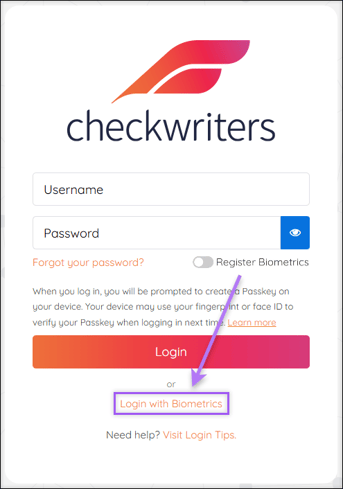
**We are aware of an issue where iOS users are not automatically prompted to use passkeys upon opening Checkwriters ESS. We are investigating this issue.**
In the meantime, please select **Login with Biometrics** to utilize a registered passkey.
- [Employee Self-Service](https://help.checkwriters.com/knowledge/employee-self-service?hsLang=en#main-content)
- [My Dashboard](https://help.checkwriters.com/knowledge/employee-self-service?hsLang=en#my-dashboard)
- [My Info](https://help.checkwriters.com/knowledge/employee-self-service?hsLang=en#my-info)
- [My Payroll](https://help.checkwriters.com/knowledge/employee-self-service?hsLang=en#my-payroll)
- [My Time](https://help.checkwriters.com/knowledge/employee-self-service?hsLang=en#my-time)
- [Settings](https://help.checkwriters.com/knowledge/employee-self-service?hsLang=en#settings)
- [My Documents](https://help.checkwriters.com/knowledge/employee-self-service?hsLang=en#my-documents)
- [HR Admin](https://help.checkwriters.com/knowledge/hr-admin?hsLang=en#main-content)
- [Recruit Employees](https://help.checkwriters.com/knowledge/hr-admin?hsLang=en#recruit-employees)
- [Hire Employees](https://help.checkwriters.com/knowledge/hr-admin?hsLang=en#hire-employees)
- [Manage Employees](https://help.checkwriters.com/knowledge/hr-admin?hsLang=en#manage-employees)
- [Compliance](https://help.checkwriters.com/knowledge/hr-admin?hsLang=en#compliance)
- [ACA Center](https://help.checkwriters.com/knowledge/hr-admin?hsLang=en#aca-center)
- [Communications](https://help.checkwriters.com/knowledge/hr-admin?hsLang=en#communications)
- [Document Center](https://help.checkwriters.com/knowledge/hr-admin?hsLang=en#document-center)
- [Security Control Center](https://help.checkwriters.com/knowledge/hr-admin?hsLang=en#security-control-center)
- [Company](https://help.checkwriters.com/knowledge/company?hsLang=en#main-content)
- [Two-Factor Authentication (2FA)](https://help.checkwriters.com/knowledge/company?hsLang=en#two-factor-authentication-2fa)
- [Accruals](https://help.checkwriters.com/knowledge/company?hsLang=en#accruals)
- [Earnings](https://help.checkwriters.com/knowledge/company?hsLang=en#earnings)
- [EE Custom Fields](https://help.checkwriters.com/knowledge/company?hsLang=en#ee-custom-fields)
- [Payroll](https://help.checkwriters.com/knowledge/payroll?hsLang=en#main-content)
- [Payroll](https://help.checkwriters.com/knowledge/payroll?hsLang=en#payroll)
- [Taxes](https://help.checkwriters.com/knowledge/payroll?hsLang=en#taxes)
- [Time Management](https://help.checkwriters.com/knowledge/time-management?hsLang=en#main-content)
- [Time Management](https://help.checkwriters.com/knowledge/time-management?hsLang=en#time-management)
- [Time Off Center](https://help.checkwriters.com/knowledge/time-management?hsLang=en#time-off-center)
- [Reporting](https://help.checkwriters.com/knowledge/reporting?hsLang=en#main-content)
- [Standard reports](https://help.checkwriters.com/knowledge/reporting?hsLang=en#standard-reports)
- [Custom reports](https://help.checkwriters.com/knowledge/reporting?hsLang=en#custom-reports)
- [Release Notes](https://help.checkwriters.com/knowledge/release-notes?hsLang=en#main-content)
- [2026 Release Notes](https://help.checkwriters.com/knowledge/release-notes?hsLang=en#2026-release-notes)
- [2025 Release Notes](https://help.checkwriters.com/knowledge/release-notes?hsLang=en#2025-release-notes)
- [2024 Release Notes](https://help.checkwriters.com/knowledge/release-notes?hsLang=en#2024-release-notes)
[](http://checkwriters.com)
[mailto:email@email.com](mailto:email@email.com)
Copyright © 2026, Checkwriters, Inc.