---
title: "Compliance I-9: E-Verify Cases"
description: The E-Verify Cases tab of I-9 allows trained users to track and manage employees' E-Verify Cases. E-Verify Users must be trained by Checkwriters before gaining access to E-Verify.
---
[Skip to content](https://help.checkwriters.com/knowledge/compliance-i-9-e-verify-cases#main-content)
English
Show submenu for translations

Open main navigation
Close main navigation
- English
Show submenu for translations
- [Checkwriters Login](https://www.checkwriterspayrollhr.com/)
[Checkwriters Login](https://www.checkwriterspayrollhr.com/)
Hello. How can we help you?
- There are no suggestions because the search field is empty.
1. [Checkwriters Knowledge Base](https://help.checkwriters.com/knowledge?hsLang=en)
2. [HR Admin](https://help.checkwriters.com/knowledge/hr-admin?hsLang=en)
3. [Compliance](https://help.checkwriters.com/knowledge/hr-admin?hsLang=en#compliance)
# Compliance I-9: E-Verify Cases
## The E-Verify Cases tab on I-9 allows trained users to track and manage employees' E-Verify Cases. E-Verify users must be trained by Checkwriters before gaining access to E-Verify.
**Important:** All companies utilizing E-Verify must display these E-Verify posters in a conspicuous, accessible location, where all employees can readily view them.
- [E-Verify Participation Poster](https://help.checkwriters.com/hubfs/E-Verify_Participation_Poster_Eng_Es%20(1).pdf?hsLang=en)
- [IER Right to Work Poster](https://www.e-verify.gov/sites/default/files/everify/posters/IER_RightToWorkPoster%20Eng_Es.pdf)
**Note:** For any questions regarding Form I-9 and E-Verify, please contact [EVerify@checkwriters.com](mailto:EVerify@checkwriters.com).
[E-Verify Cases](https://help.checkwriters.com/knowledge/compliance-i-9-e-verify-cases#cases)
- [E-Verify Cases Layout](https://help.checkwriters.com/knowledge/compliance-i-9-e-verify-cases#layout)
- [Case Details](https://help.checkwriters.com/knowledge/compliance-i-9-e-verify-cases#details)
[Case Statuses](https://help.checkwriters.com/knowledge/compliance-i-9-e-verify-cases#case-statuses)
- [Photo Match](https://help.checkwriters.com/knowledge/compliance-i-9-e-verify-cases#photo-match)
- [Close Case and Resubmit](https://help.checkwriters.com/knowledge/compliance-i-9-e-verify-cases#close-and-resubmit)
- [Final Non-Confirmation](https://help.checkwriters.com/knowledge/compliance-i-9-e-verify-cases#final-non-confirmation)
- [Scan and Upload](https://help.checkwriters.com/knowledge/compliance-i-9-e-verify-cases#scan-and-upload)
- [Pending Referral](https://help.checkwriters.com/knowledge/compliance-i-9-e-verify-cases#pending-referral)
- [Referred](https://help.checkwriters.com/knowledge/compliance-i-9-e-verify-cases#referred)
- [Manual Review](https://help.checkwriters.com/knowledge/compliance-i-9-e-verify-cases#manual-review)
- [Queued](https://help.checkwriters.com/knowledge/compliance-i-9-e-verify-cases#queued)
- [Employment Authorized](https://help.checkwriters.com/knowledge/compliance-i-9-e-verify-cases#employment-authorized)
- [Closed](https://help.checkwriters.com/knowledge/compliance-i-9-e-verify-cases#closed)
---
### E-Verify Cases
**Note:** An E-Verify case must be generated from a completed Form I-9. Learn more about Checkwriters'I-9 process in our [Compliance I-9: Employees](https://help.checkwriters.com/knowledge/compliance-i-9-employees?hsLang=en) article.
To view E-Verify Cases in Checkwriters, navigate to [**checkwriterspayrollhr.com**](http://checkwriterspayrollhr.com) **→ HR Admin → Compliance → I-9 → E-Verify Cases (tab)**.
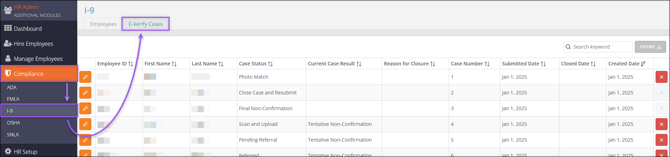
#### E-Verify Cases Layout
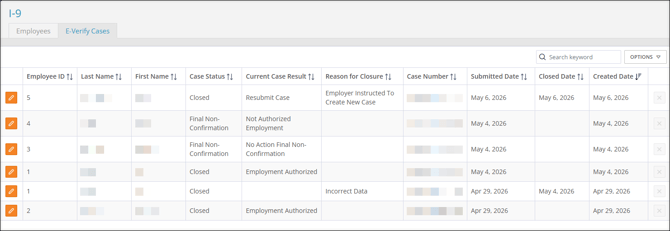
The E-Verify Cases table lists important information for each case.
- **Employee ID**
- Employee **Last Name**
- Employee **First Name**
- **Case Status**: This column indicates where the case is in the E-Verify process. Jump to the [Case Statuses](https://help.checkwriters.com/knowledge/compliance-i-9-e-verify-cases#case-statuses) section for more information.
- Photo Match
- Scan and Upload
- Manual Review
- Pending Referral
- Referred
- Queued
- Employment Authorized
- Final Non-Confirmation
- Close Case and Resubmit
- Closed
- **Current Case Result**: This column indicates the current case result. The case result could change based on any further actions taken.
- Employment Authorized
- Not Authorized Employment
- Resubmit Case
- No Action Final Non-Confirmation
- No Result
- Tentative Non-Confirmation
- **Reason for Closure**: If you manually closed without employment being authorized by E-Verify, the selected reason the case was closed will appear in this column. Not every case will have something in this column.
- Employee Continues To Work After Final Non-Confirmation
- Employee Terminated For Final Non-Confirmation Result
- Incorrect Data
- Employer Instructed To Close By DHS
- Employer Instructed To Close By SSA
- Other Free Text
- **Case Number**: The 15-digit E-Verify case number. This will also be listed at the bottom of the completed Form I-9.
- **Submitted Date**: The date the E-Verify case was officially submitted.
- **Closed Date**: The date the case was officially closed with its final case result.
- **Created Date**: The date the E-Verify case was created.
#### Case Details
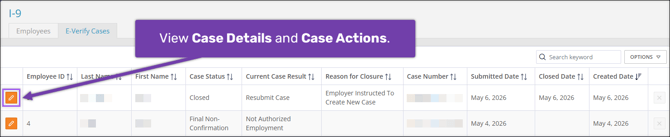
Select **Edit ** to view details of an individual case.
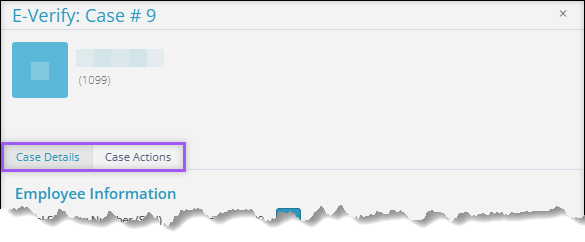
The **Case Details** tab of each case lists details including Employee, Case, Employer, Verification, and Document Information. The **Case Information** section shows the case's current status.
---
### Case Statuses
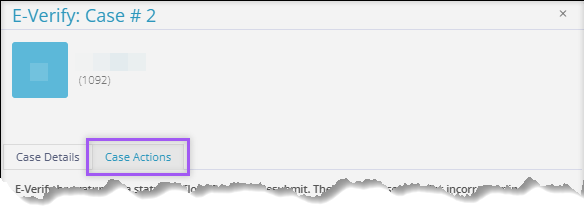
Most often, E-Verify cases will be authorized within seconds. Occasionally, cases may return other statuses and require additional action. Each status (except "Closed") has more information in the **Case Actions** tab. To view Case Actions, select **Edit** IMAGE on a case, then select the **Case Actions** tab.

**Note:** For any questions regarding Form I-9 and E-Verify, please contact [EVerify@checkwriters.com](mailto:EVerify@checkwriters.com).
[Photo Match](https://help.checkwriters.com/knowledge/compliance-i-9-e-verify-cases#photo-match)
[Close Case and Resubmit](https://help.checkwriters.com/knowledge/compliance-i-9-e-verify-cases#close-and-resubmit)
[Final Non-Confirmation](https://help.checkwriters.com/knowledge/compliance-i-9-e-verify-cases#final-non-confirmation)
[Scan and Upload](https://help.checkwriters.com/knowledge/compliance-i-9-e-verify-cases#scan-and-upload)
[Pending Referral](https://help.checkwriters.com/knowledge/compliance-i-9-e-verify-cases#pending-referral)
[Referred](https://help.checkwriters.com/knowledge/compliance-i-9-e-verify-cases#referred)
[Manual Review](https://help.checkwriters.com/knowledge/compliance-i-9-e-verify-cases#manual-review)
[Queued](https://help.checkwriters.com/knowledge/compliance-i-9-e-verify-cases#queued)
[Employment Authorized](https://help.checkwriters.com/knowledge/compliance-i-9-e-verify-cases#employment-authorized)
[Closed](https://help.checkwriters.com/knowledge/compliance-i-9-e-verify-cases#closed)
#### Photo Match
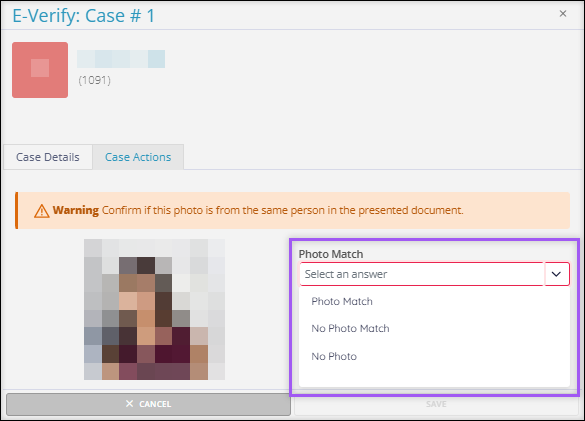
If an E-Verify case returns with the "Photo Match" status, E-Verify needs to confirm that the photo they have on file matches any photos provided in the employee's paperwork to ensure that the documents are genuine.
On the **Case Actions** tab, you will be asked to view an image and decide whether it matches any photo ID the employee has provided.
- If the person in the photo provided by E-Verify matches the person in the photo ID provided by the employee, select **Photo Match**.
- If the person in the photo provided by E-Verify *does not* match the person in the photo ID provided by the employee, select **No Photo Match**.
- If E-Verify does not provide a photo, select **No Photo**. After this, you may be required to [Scan and Upload](https://help.checkwriters.com/knowledge/compliance-i-9-e-verify-cases#scan-and-upload).
#### Close Case and Resubmit
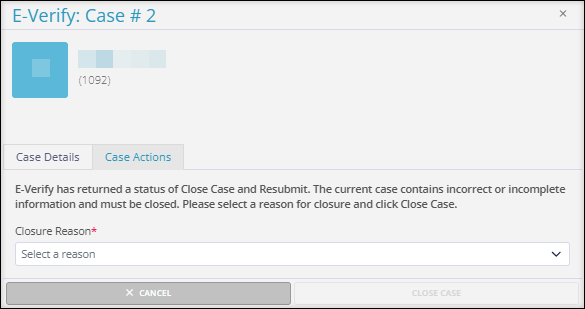
If an E-Verify case returns a "Close Case and Resubmit" status, the case contains incorrect or incomplete information and must be closed so you can submit a new case.
On the **Case Actions** tab, you must select a Closure Reason from the dropdown menu before closing the case. After choosing a Closure Reason, select **Close Case**.
#### Final Non-Confirmation
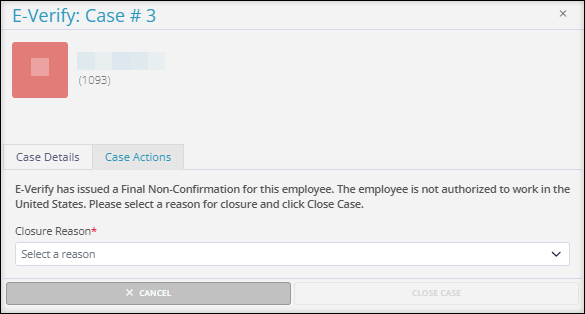
If an E-Verify case returns a "Final Non-Confirmation" status, the employee has not been authorized for work, and you must close the case.
On the **Case Actions** tab, you must select a Closure Reason from the dropdown menu before closing the case. After choosing a Closure Reason, select **Close Case**.
#### Scan and Upload
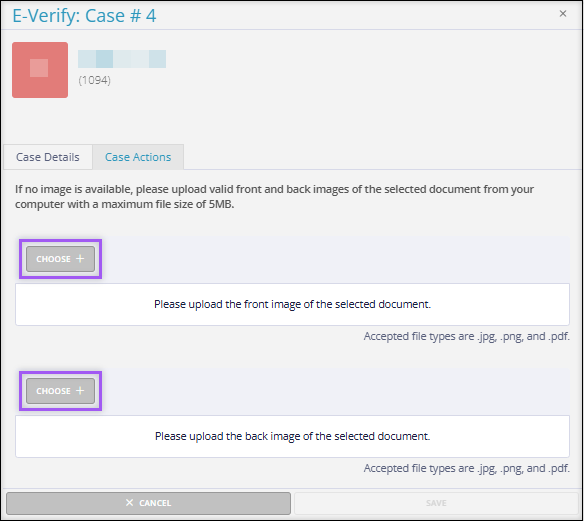
If an E-Verify case returns a "Scan and Upload" status, this is a Tentative Non-Confirmation of employment. You may have selected "No Photo Match" for the [Photo Match](https://help.checkwriters.com/knowledge/compliance-i-9-e-verify-cases#photo-match) status. You must upload valid photo ID of the employee that matches the documentation they have provided.
In the **Case Actions** tab, select **Choose** to upload a copy of the front of the employee-provided ID, then select **Choose** to upload a copy of the back. After providing both, select **Save**.
#### Pending Referral
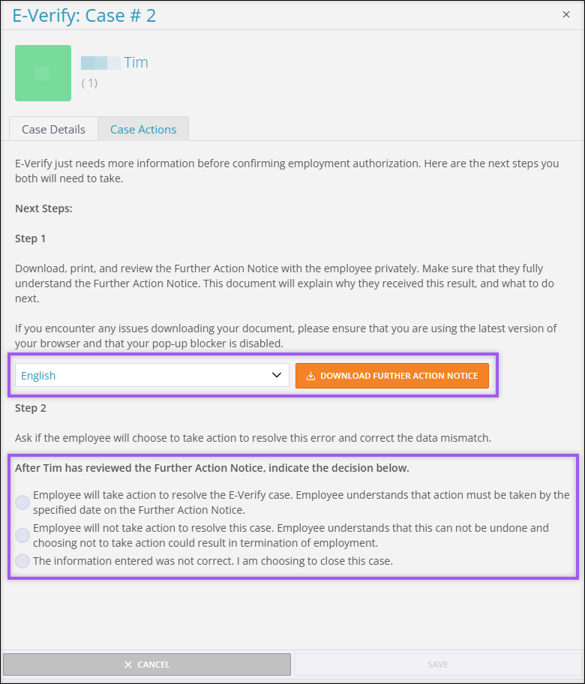
If an E-Verify case returns a "Pending Referral" status, this is a Tentative Non-Confirmation of employment, and E-Verify requires additional information. You must download the **Further Action Notice** and discuss next steps with your employee.
In the **Case Actions** tab, review the "Next Steps" information. For Step 1, select a language for the Further Action Notice, then select **Download Further Action Notice**. This notice will explain why the employee received this status and what to do next.
After reviewing the Further Action Notice with the employee, return to their E-Verify case for Step 2. You must indicate what will happen next, either:
- Employee will take action to resolve the E-Verify Case. Employee understands that action must be taken by the specified date on the Further Action Notice.
- Employee will not take action to resolve this case. Employee understands that this cannot be undone and choosing not to take action could result in termination of employment.
- The information entered was not correct. I am choosing to close this case.
#### Referred
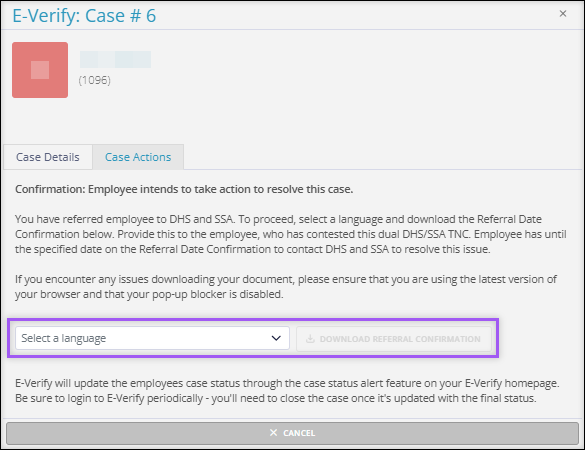
If an E-Verify case returns a "Referred" status, this is a Tentative Non-Confirmation of employment, and the case has been referred to the Department of Homeland Security (DHS) and the Social Security Administration (SSA). You must download the Referral Date Confirmation.
In the **Case Actions** tab, select a language for the Referral Date Confirmation, then select **Download Referral Confirmation**. Provide this Referral Date Confirmation to the employee, who has until the date specified in the document to contact DHS and SSA to resolve the issue.
#### Manual Review
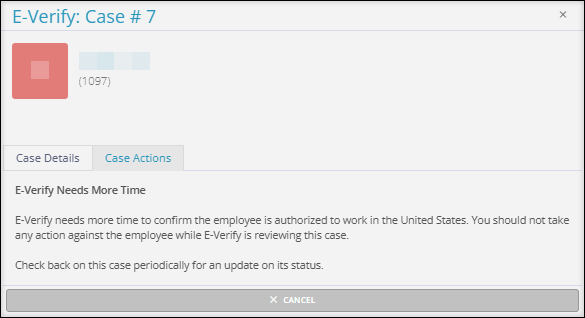
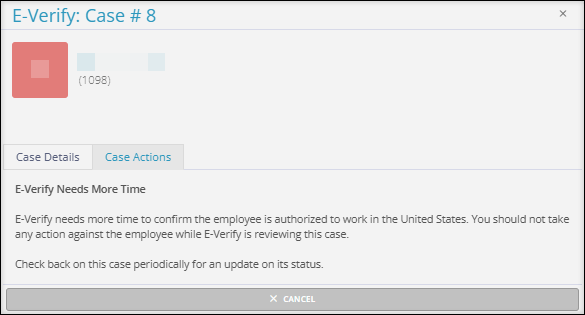
If an E-Verify case returns a "Manual Review" status, E-Verify needs more time to review the provided information. There is no immediate action to take. Check back on the case periodically for an updated status.
#### Queued
If an E-Verify case returns a “Queued” status, E-Verify needs more time to review the provided information. There is no immediate action to take. Check back on the case periodically for an updated status.
#### Employment Authorized
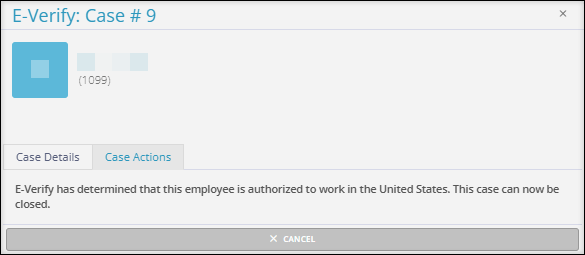
If an E-Verify case returns an "Employment Authorized" status, the employee has been authorized to work in the United States. The case can now be closed
#### Closed
If a case returns a "Closed" status, the case has been closed, and there is no action that can be taken.
**Note:** If the Form I-9 was created during onboarding, the E-Verify case number will be listed on the digital Form I-9. If the employee completed a paper Form I-9, **please note the E-Verify case number on the paper Form I-9**.
- [2026 Year-End Material](https://help.checkwriters.com/knowledge/2026-year-end-material?hsLang=en)
- [Employee Self-Service](https://help.checkwriters.com/knowledge/employee-self-service?hsLang=en#main-content)
- [My Dashboard](https://help.checkwriters.com/knowledge/employee-self-service?hsLang=en#my-dashboard)
- [My Info](https://help.checkwriters.com/knowledge/employee-self-service?hsLang=en#my-info)
- [My Payroll](https://help.checkwriters.com/knowledge/employee-self-service?hsLang=en#my-payroll)
- [My Time](https://help.checkwriters.com/knowledge/employee-self-service?hsLang=en#my-time)
- [Settings](https://help.checkwriters.com/knowledge/employee-self-service?hsLang=en#settings)
- [My Documents](https://help.checkwriters.com/knowledge/employee-self-service?hsLang=en#my-documents)
- [HR Admin](https://help.checkwriters.com/knowledge/hr-admin?hsLang=en#main-content)
- [Recruit Employees](https://help.checkwriters.com/knowledge/hr-admin?hsLang=en#recruit-employees)
- [Hire Employees](https://help.checkwriters.com/knowledge/hr-admin?hsLang=en#hire-employees)
- [Manage Employees](https://help.checkwriters.com/knowledge/hr-admin?hsLang=en#manage-employees)
- [Compliance](https://help.checkwriters.com/knowledge/hr-admin?hsLang=en#compliance)
- [ACA Center](https://help.checkwriters.com/knowledge/hr-admin?hsLang=en#aca-center)
- [Communications](https://help.checkwriters.com/knowledge/hr-admin?hsLang=en#communications)
- [Document Center](https://help.checkwriters.com/knowledge/hr-admin?hsLang=en#document-center)
- [Security Control Center](https://help.checkwriters.com/knowledge/hr-admin?hsLang=en#security-control-center)
- [Company](https://help.checkwriters.com/knowledge/company?hsLang=en#main-content)
- [Two-Factor Authentication (2FA)](https://help.checkwriters.com/knowledge/company?hsLang=en#two-factor-authentication-2fa)
- [Accruals](https://help.checkwriters.com/knowledge/company?hsLang=en#accruals)
- [Earnings](https://help.checkwriters.com/knowledge/company?hsLang=en#earnings)
- [EE Custom Fields](https://help.checkwriters.com/knowledge/company?hsLang=en#ee-custom-fields)
- [Payroll](https://help.checkwriters.com/knowledge/payroll?hsLang=en#main-content)
- [Payroll](https://help.checkwriters.com/knowledge/payroll?hsLang=en#payroll)
- [Taxes](https://help.checkwriters.com/knowledge/payroll?hsLang=en#taxes)
- [Time Management](https://help.checkwriters.com/knowledge/time-management?hsLang=en#main-content)
- [Time Management](https://help.checkwriters.com/knowledge/time-management?hsLang=en#time-management)
- [Time Off Center](https://help.checkwriters.com/knowledge/time-management?hsLang=en#time-off-center)
- [Reporting](https://help.checkwriters.com/knowledge/reporting?hsLang=en#main-content)
- [Standard reports](https://help.checkwriters.com/knowledge/reporting?hsLang=en#standard-reports)
- [Custom reports](https://help.checkwriters.com/knowledge/reporting?hsLang=en#custom-reports)
- [Release Notes](https://help.checkwriters.com/knowledge/release-notes?hsLang=en#main-content)
- [2026 Release Notes](https://help.checkwriters.com/knowledge/release-notes?hsLang=en#2026-release-notes)
- [2025 Release Notes](https://help.checkwriters.com/knowledge/release-notes?hsLang=en#2025-release-notes)
- [2024 Release Notes](https://help.checkwriters.com/knowledge/release-notes?hsLang=en#2024-release-notes)
[](http://checkwriters.com)
[mailto:email@email.com](mailto:email@email.com)
Copyright © 2026, Checkwriters, Inc.